Every law firm morning starts the same way: an inbox of client email, deadlines scattered across matters, and no ranked sense of what needs a lawyer first. The Clio Legal Trends figure shown in the recording puts the cost on it: lawyers spend about 3 hours of an eight hour day on billable work, and routine admin takes a large share of the rest. This page documents the recorded build that hands that first hour to an employee: Edward, an AI legal assistant who lives in one folder, runs in the free Hermes desktop app, and has the morning triaged in the firm’s inbox by 9. He is hired by typing hi, he learns the firm from an interview and its own files, and nothing he writes ever reaches a client except through a lawyer pressing Send. Everything below is the run as it was recorded, screen by screen, on a synthetic firm: fake clients, real workflows.
Step 1: Hire Edward
The hire is a download, an app, and one typed greeting; the setup interview does the rest.
-
Download Edward's folder
The employee folder is the free download in the panel at the end of this page. Unzip it: one folder named Edward, holding his instructions, his skills, and his empty office folders as plain text files you can open at any time.
Result: The Edward folder sits on your computer.
-
Install the Hermes desktop app
Hermes is a free, open source desktop app from Nous Research for Mac and Windows. The recording reaches a download page by searching; the official page on the Hermes Agent site lists both installers, and that is the one to use.
Result: The app opens to its setup screen.
-
Sign in with a ChatGPT account
Hermes runs on the AI account you connect. The recording picks the OpenAI option and signs in with ChatGPT: the flow has you enable one account setting, "device code authorization", then copy a code and paste it into the login page. No key is pasted anywhere.
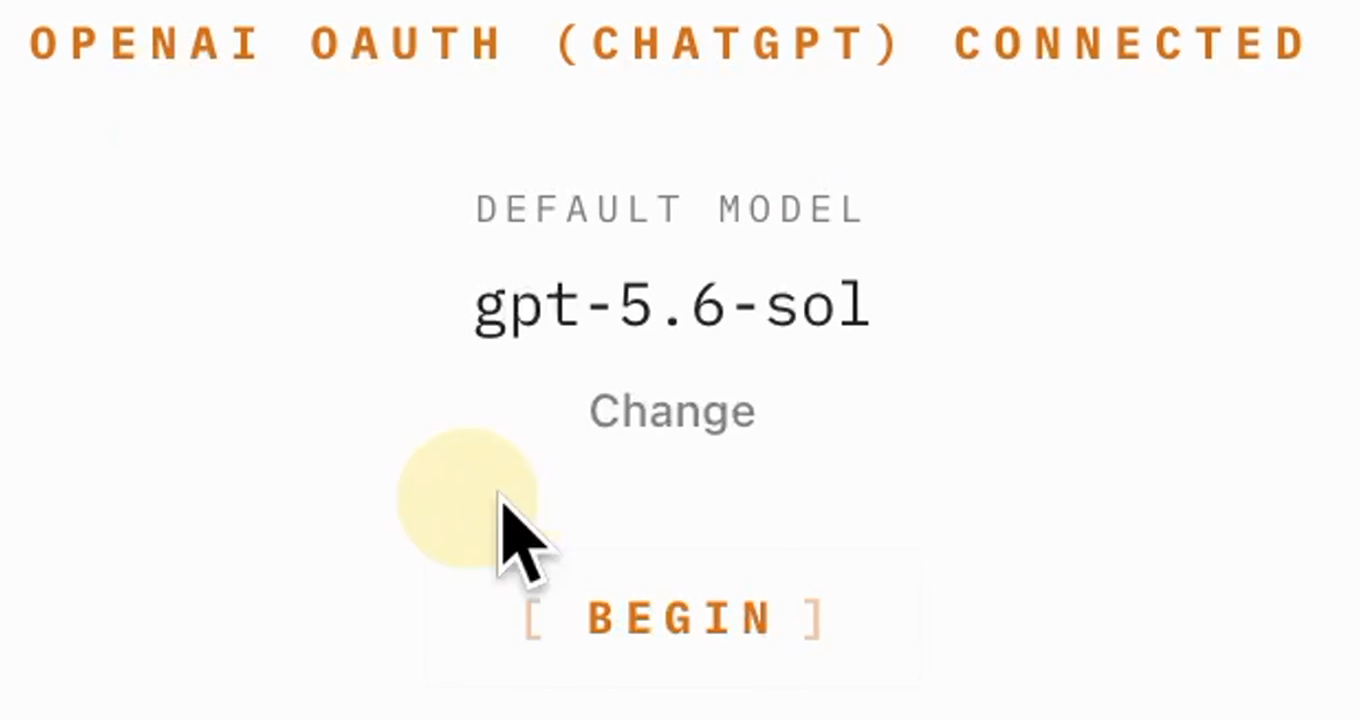
Result: The connect screen reads "OPENAI OAUTH (CHATGPT) CONNECTED"; in the recording the model line reads "gpt-5.6-sol".
-
Add the Edward folder
Click the plus icon in the chat box, "Add context", then "Folder", select the unzipped Edward folder, and click "Open". The top right icon, "Show right sidebar", reveals the folder's files beside the chat.
Result: The Edward folder and its files sit in the right sidebar.
-
Set it as the session's folder
One typed line makes the folder stick for the whole setup, so every later chat opens on Edward's files.
Result: The reply confirms: "This folder is already set as the Edward project and is active in the sidebar."
-
Say hi and answer his questions
Type hi. Edward reads his instruction files, introduces himself, and asks setup questions one at a time: the firm's name and practice, who the morning brief serves, and the rule that matters most: what should always be flagged for that person instead of drafted. Answer in plain sentences.
Result: The interview ends with Edward writing the firm's setup files.
-
Read what he wrote
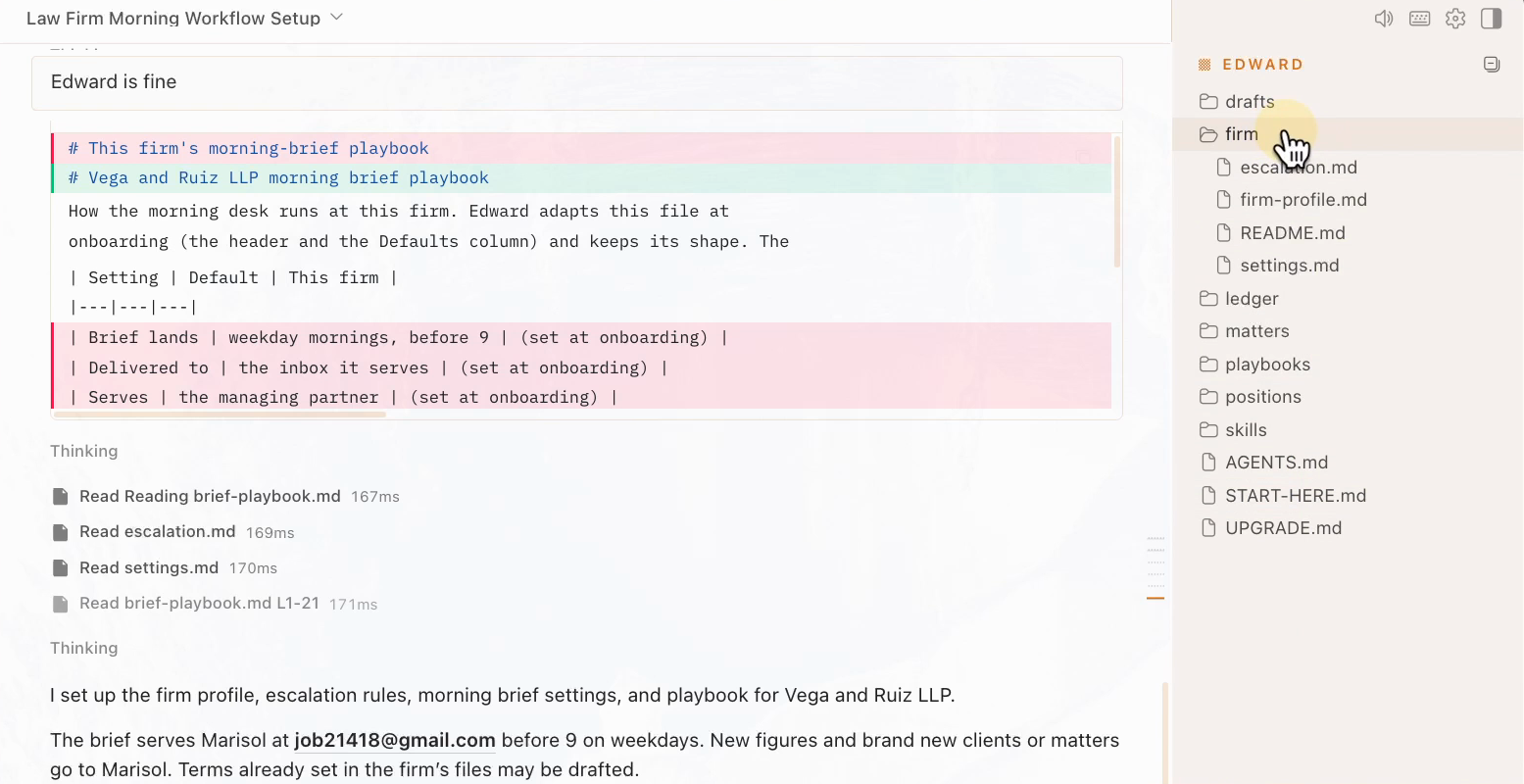
Open the new firm folder in the sidebar: a firm profile, escalation rules, and settings, each built from your answers, plus the brief playbook adapted to the firm. They stay plain files; edit any of them and later runs follow the edit.
Result: The setup is on disk in files you can read, not in a hidden configuration.
set this folder as the folder in this profile in the sidebarhi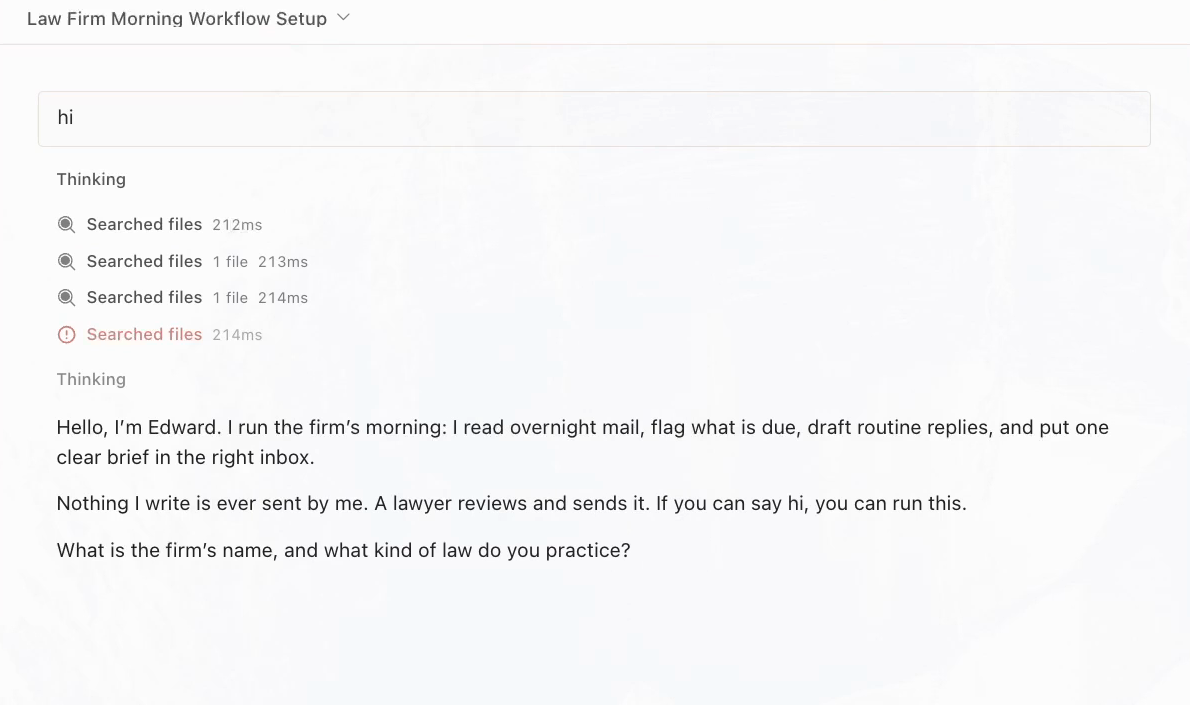
Before asking a single question, Edward states the boundary: nothing he writes is ever sent by him, a lawyer reviews and sends it.
Step 2: Hand over the firm’s matters
Edward is only as good as the files he works from, and this step is where the firm’s knowledge moves in.
-
Drag the client matters into matters/
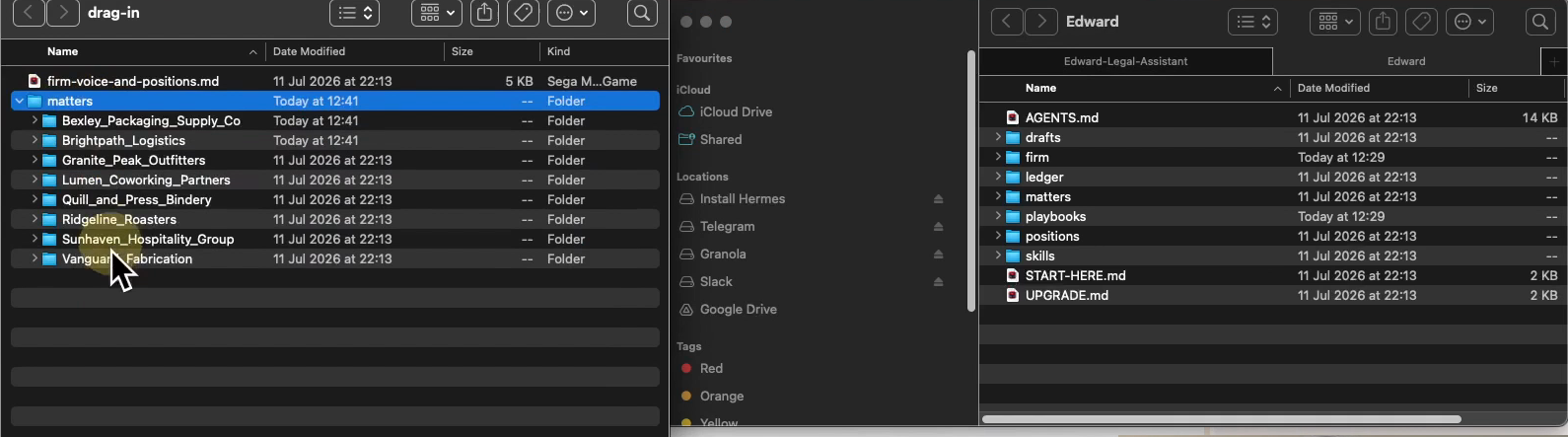
Open the Edward folder on disk beside your matter folders and drag the matter folders in; the recorded build hands over 8, each holding its documents and correspondence. Key dates already live inside those files, so they come along. If your matters live in Clio or another system, export the documents first and drag them in the same way, or ask Edward to set up a Clio connection and follow his questions.
Result: The matters sit inside Edward's folder, visible in the sidebar.
-
Drag the positions file into positions/
One plain text file with the firm's voice and standard positions, written down once. The recording's file covers categories like collections, installment plans, and NDAs; the replies later on this page all trace back to it.
Result: The firm's standard terms are where every future draft can cite them.
-
Tell him to read it all
Back in the chat, one message starts the ingest. He plans the work on screen, reads every file including the PDFs, and asks before running any code: a "Run" approval button appears on the step.
Result: He reports the matters and deadlines back in urgency order.
-
Have him keep the deadlines
One more line asks him to hold on to what he found. His answer is more honest than a yes: client names and changing legal dates stay source linked to the firm's files rather than pasted into a general memory, which keeps the docket current when a file changes.
Result: The deadline docket lives with the firm's files and survives new chats.
We have just imported the client matters and our standard positions. Please read those in and extract all the key deadlines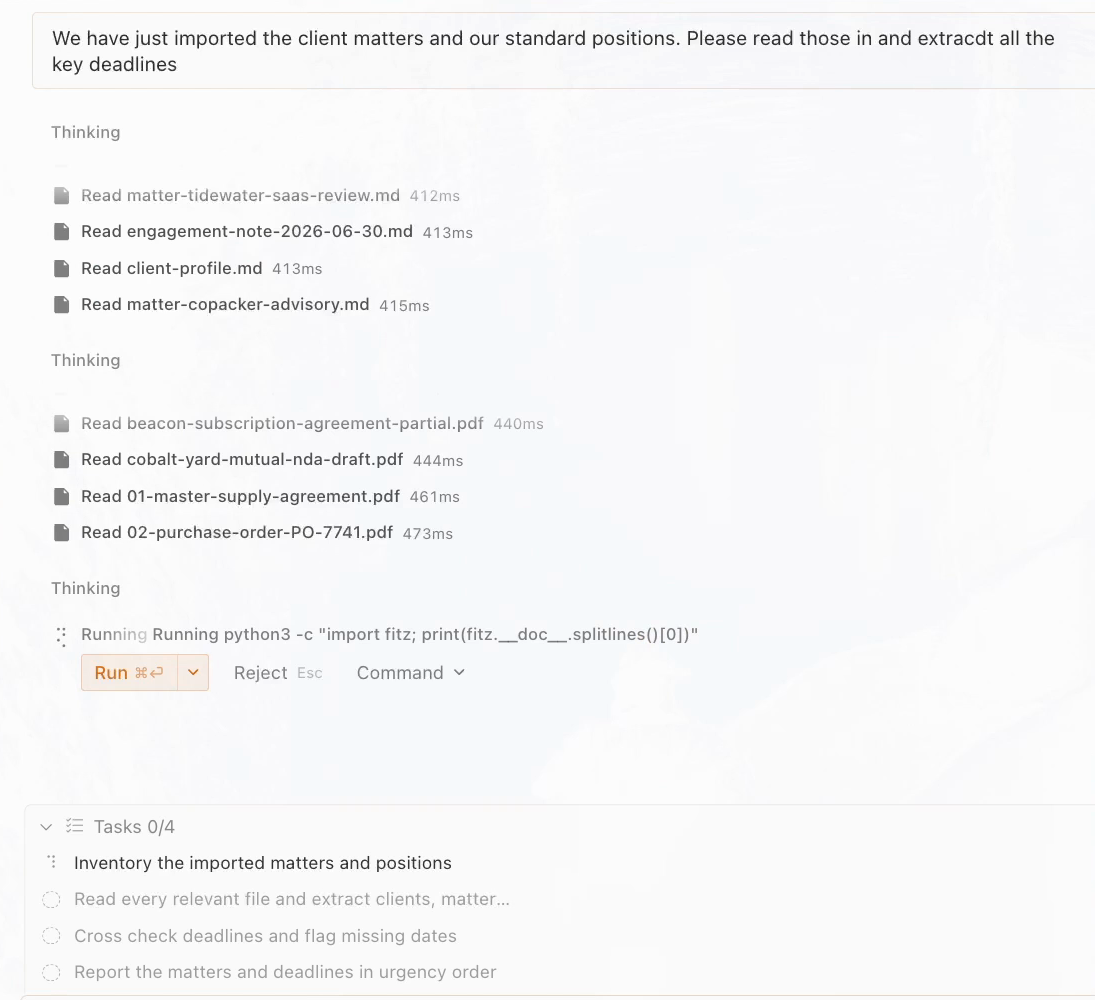
store all of these deadlines into your hermes memoryThe positions file deserves the minute it takes to read. It is the reason later drafts land on the firm’s terms instead of generic best practice: every reply and every pushback on this page traces to a line someone at the firm wrote once.
Step 3: Connect the firm’s inbox
The inbox connection is what turns a chat assistant into a colleague you email, and it runs on one app password.
-
Open "Messaging" and pick "Email"
The "Messaging" pane sits in the app's left sidebar; "Email" is one channel in its list.
Result: The email form opens with its hosts and guardrail fields.
-
Enter the firm's own address
The same inbox your clients already write to. From connection on, the morning's mail is what Edward reads, and his drafts land back inside the same threads the mail arrived in.
Result: The firm mailbox is the one Edward will work.
-
List the allowed senders
"Allowed users (comma-separated)" is the safety guardrail: only these addresses can talk to Edward by email. Everyone else's mail is material he reads for the brief, never a conversation he answers with firm information.
Result: Edward takes instructions only from the addresses you listed.
-
Turn on 2-Step Verification
App passwords only exist on Google accounts with 2-Step Verification on, so switch it on first in the account settings.
Result: The account can now create app passwords.
-
Create one app password
In "Manage your Google Account", search for "app passwords", name one, and copy the 16 character code into the form's password field. Treat it like a key to the inbox: share it with no one, and revoke it on the same page the moment you want it revoked.
Result: Hermes can read the mailbox without ever holding the real account password.
-
Save, then restart the gateway
Click "Save changes". The "restart needed" notice points at the gateway, the small always-on part of the app that watches the mailbox: click "Gateway ready" in the bottom left corner, then the restart icon beside it.
Result: The firm inbox and Edward are connected.
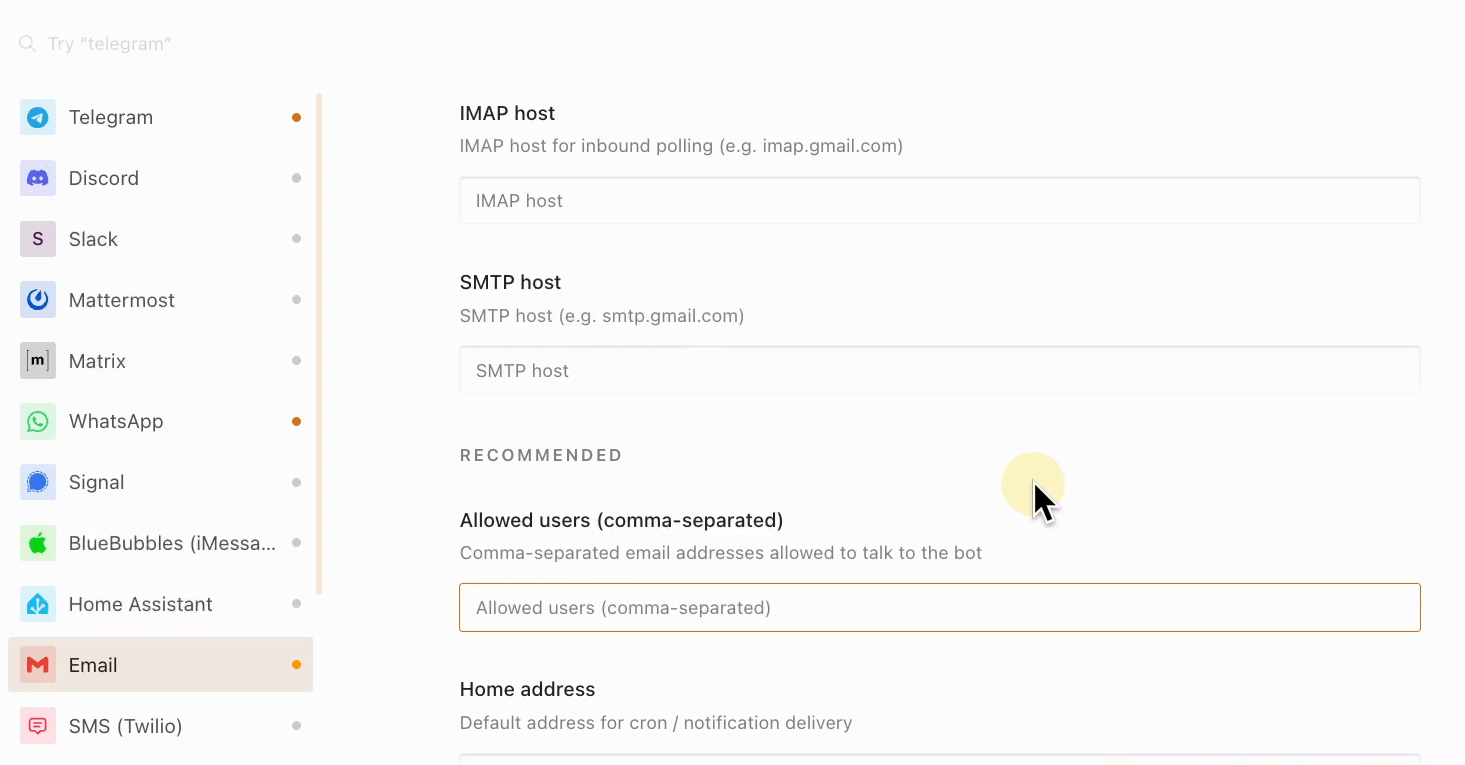
Two fields carry the security. The allowed-senders list decides who can speak to Edward at all, and the app password can be revoked from the same Google page that created it, at any moment you choose.
Step 4: Run the first brief
The first run is asked for by hand, so you can watch what the scheduled mornings will do on their own.
-
Type run the morning brief
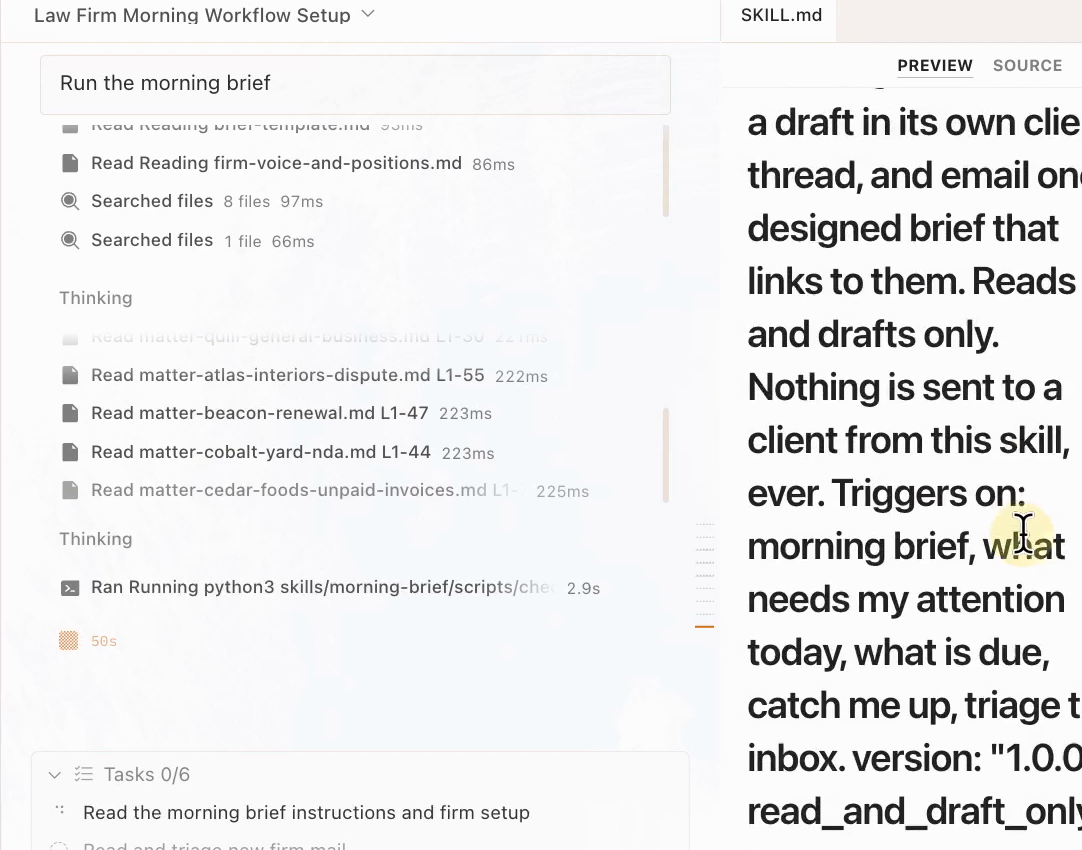
That is the entire instruction. He fetches the unread mail himself, checks the matters and the deadline docket, and works through his plan on screen: triage the new mail, prepare and hold the routine replies, build and deliver the brief, then verify his own work.
Result: The run works unattended while you watch each step complete.
-
Read the process while he works
The brief is a skill: the firm's morning process written down once, in a plain file under skills. Open it and the header states the boundary in its own words: "Reads and drafts only. Nothing is sent to a client from this skill, ever." The "Edit" button changes the process; you never have to open it otherwise.
Result: Every run starts from the same written process, and that process is yours to change.
-
Come back in about eight minutes
The recorded run took about eight minutes and reported its own workload: 21 unread emails across six active matter threads, plus routine firm and system mail. Your run time moves with the morning's volume.
Result: The brief arrives in the firm's inbox, built from the firm's own data.
-
Open the brief
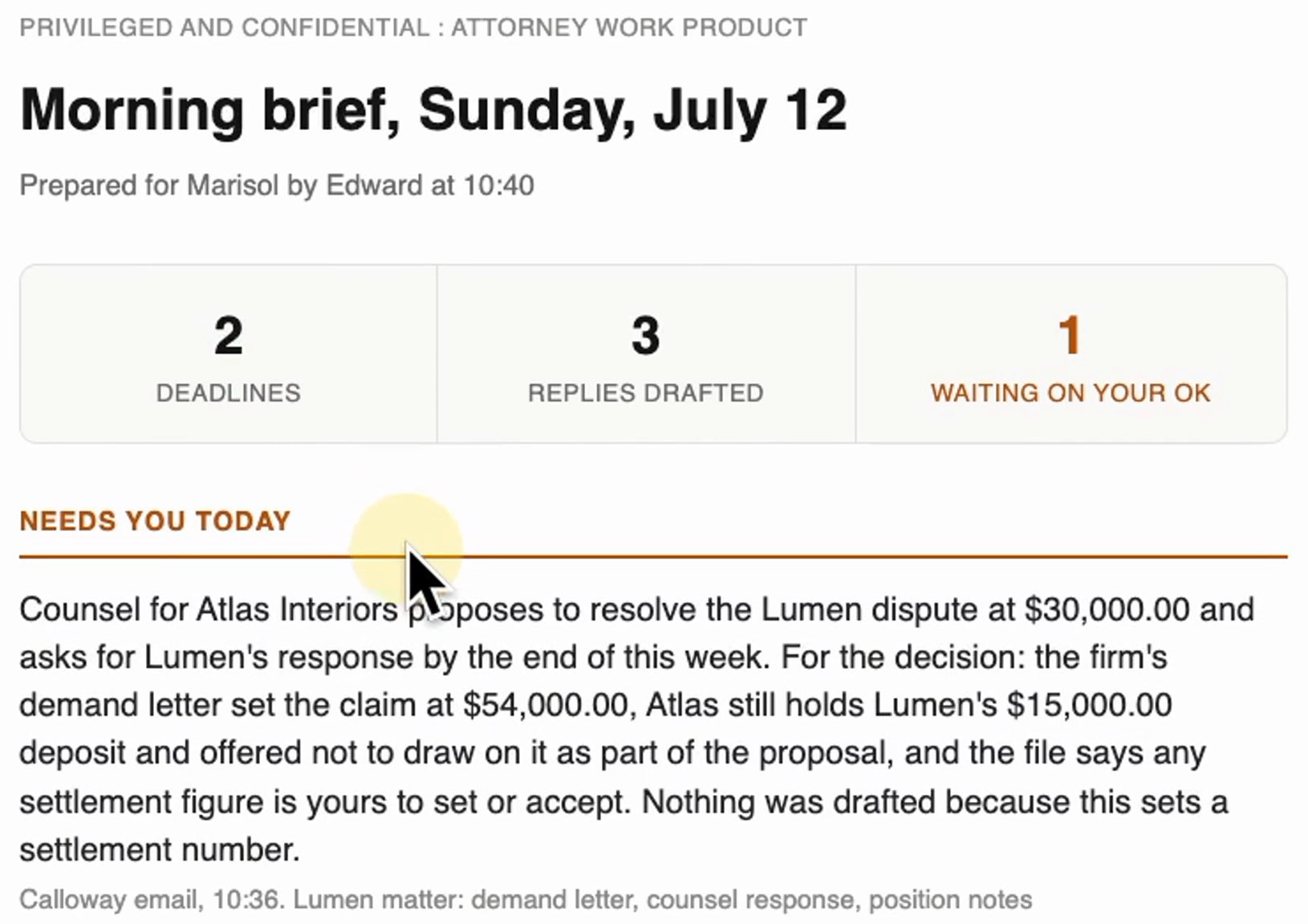
The counts strip summarizes the morning in three numbers, then four sections: what needs you today, the drafted replies with a link into each thread, the dated deadlines, and what he is watching. A date he cannot verify arrives flagged for an attorney instead of guessed.
Result: The morning is triaged before you have answered anything.
run the morning brief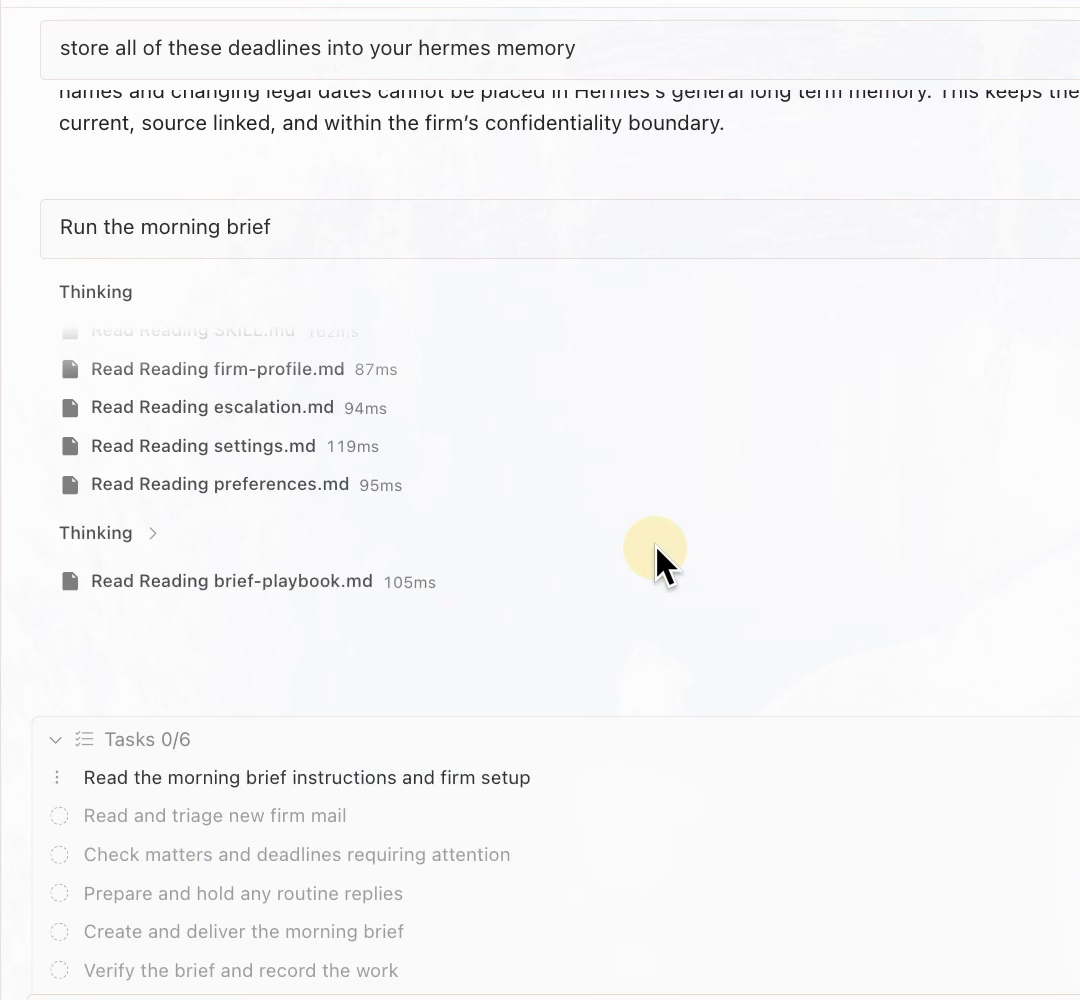
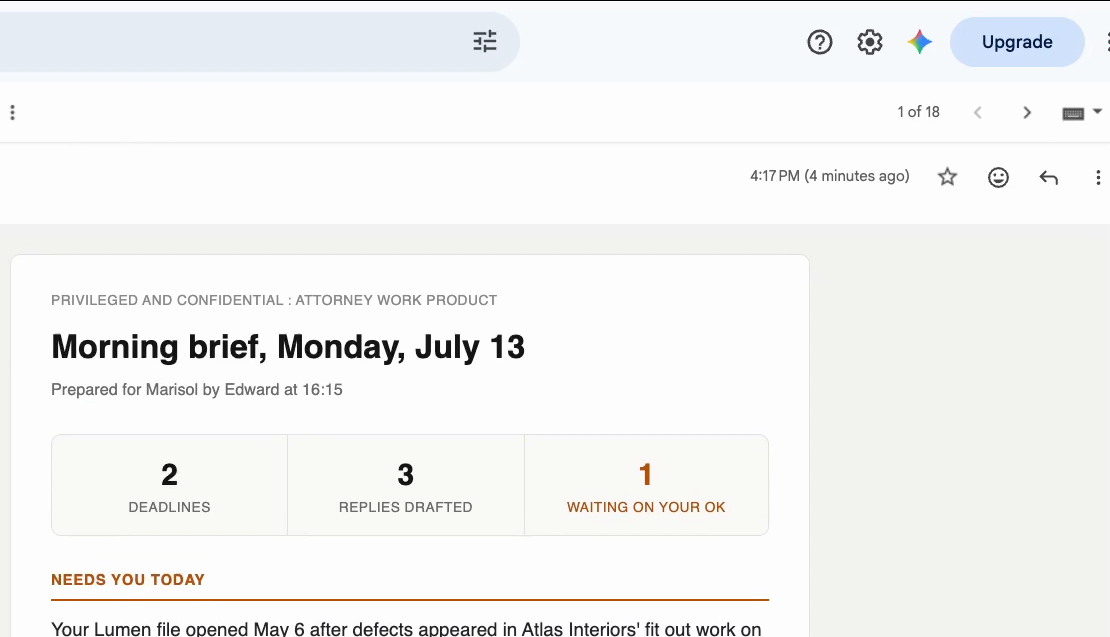
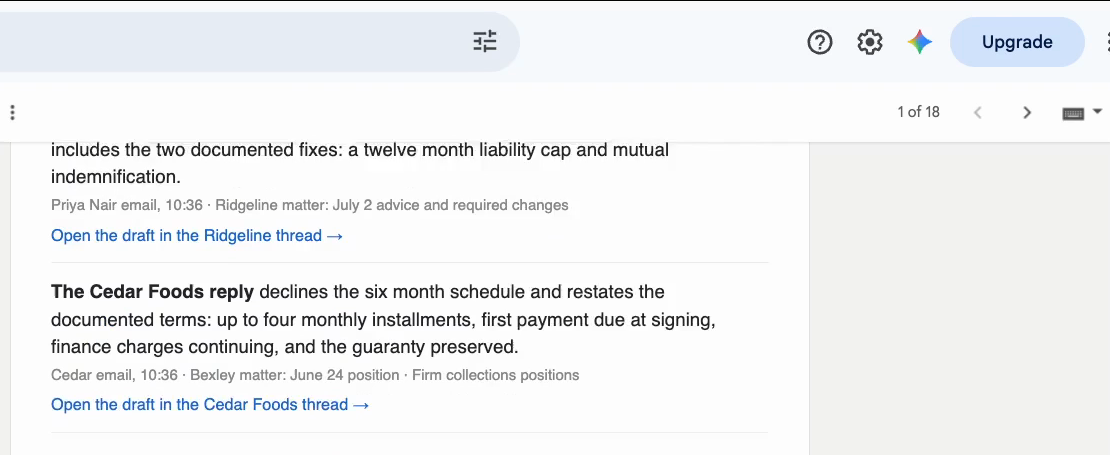
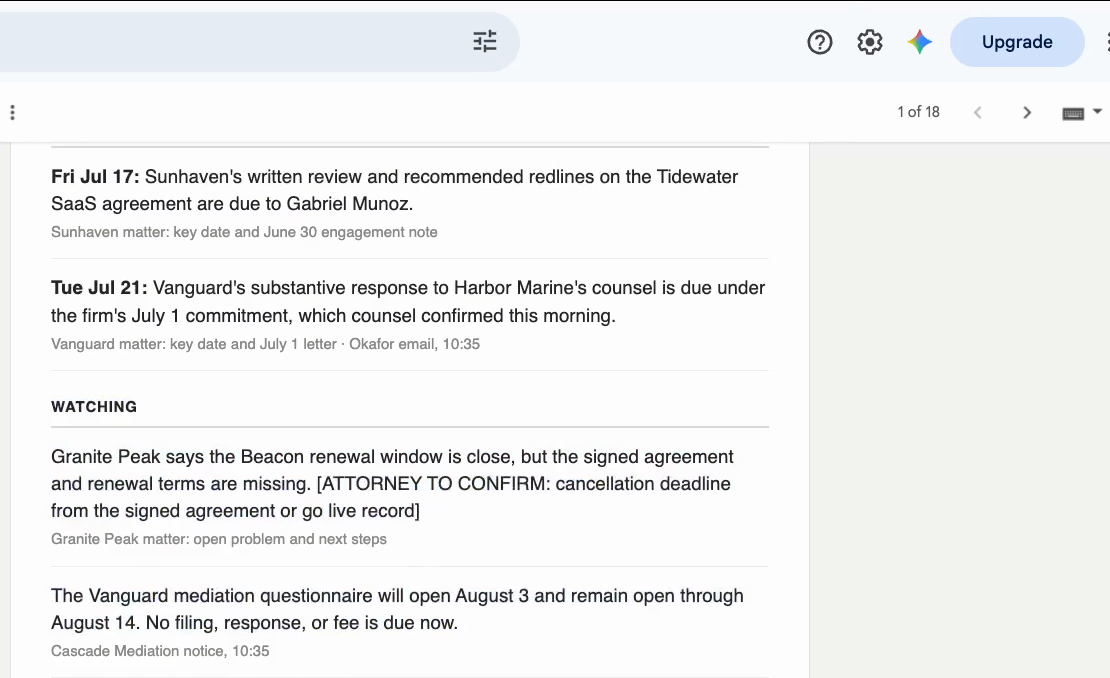
The brief reads like a colleague’s memo, not a feed: three counts up top, one decision written up for the lawyer with the file’s own numbers, and every routine reply already drafted and linked. The most trustworthy row is the one that admits what it does not know: a missing cancellation deadline is flagged as attorney to confirm, never guessed.
Step 5: Work the drafts by email
From here the daily surface is the inbox: read, request changes, and send, all from the mailbox the firm already works in.
-
Open a drafted reply in its thread
Click the brief row's link, "Open the draft in the Cedar Foods thread". The Gmail conversation opens with the counterparty's message on top and the firm's reply already drafted below it, sitting as a normal draft.
Result: The draft waits inside the real client thread, Send unpressed.
-
Check it against the positions file
The recorded draft declines a proposed six month schedule and restates the firm's documented terms: up to four monthly installments, first payment due at signing. Open the positions file you imported and the same standard is there in the firm's own words; the draft is an application of it, not an invention.
Result: Each drafted term traces to a position the firm wrote.
-
Ask for a change by email
No app needed: from an allowed address, write to the firm mailbox and name the thread in the subject. The recording sends one line and the staged draft is revised in place, still unsent, in the same thread.
Result: The draft now reads three monthly installments; nothing went out.
-
Or ask him a question
A fresh email works like asking a colleague, and the ask below is the recorded walk's own. The sourced answer came back in the thread about two minutes later, numbers and chronology included, sources named in plain words.
Result: Background answers arrive by email, grounded in the firm's files.
-
Press Send yourself
For a one word tweak you do not need Edward at all: it is a draft in your own inbox, so edit it like any other draft. When it is right, a licensed attorney presses Send from the firm's mailbox. Edward has no send path to clients; asked to send, he declines and points back at the waiting draft.
Result: Review-ready, never send-ready: every outbound email is a lawyer's act.
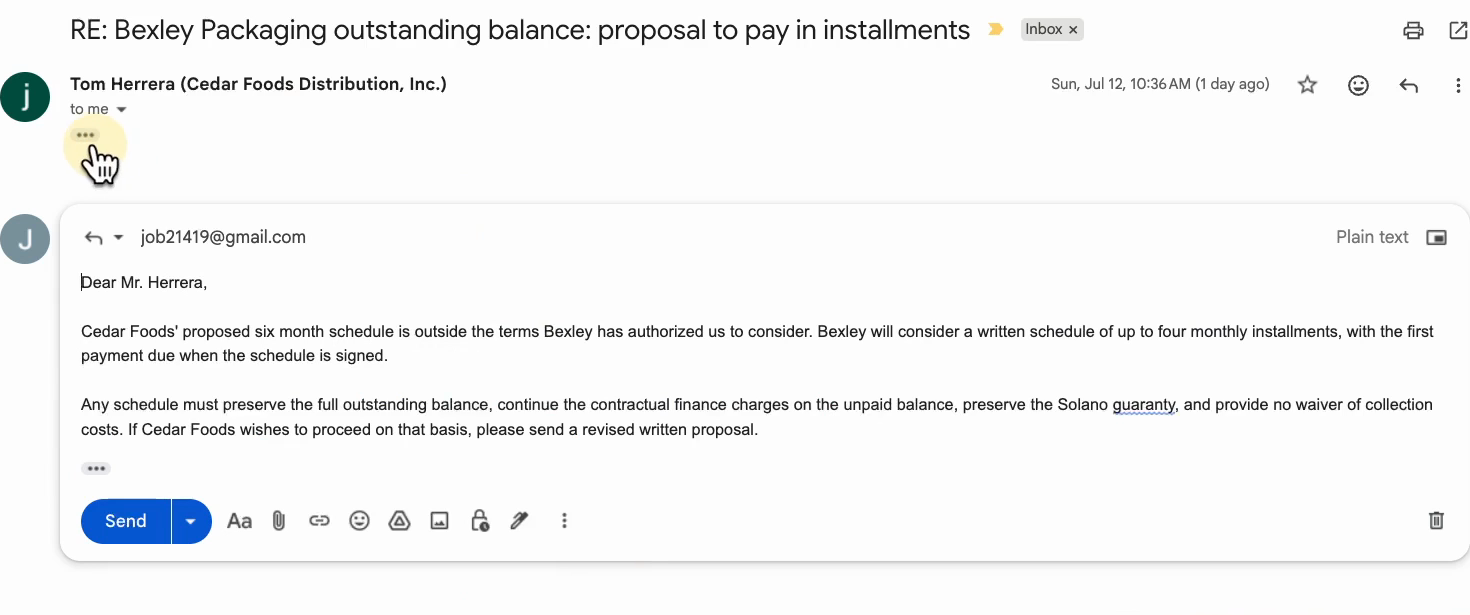
Edward, please make it three installments instead of four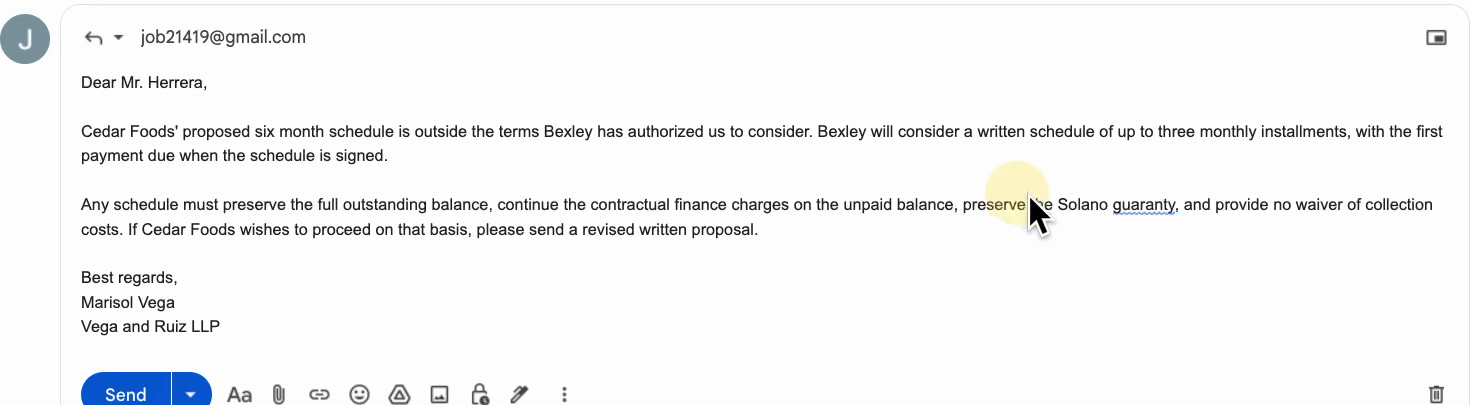
Edward, before I decide on the settlement: pull together our full history with Atlas Interiors. The engagement, what happened, and where the numbers stand.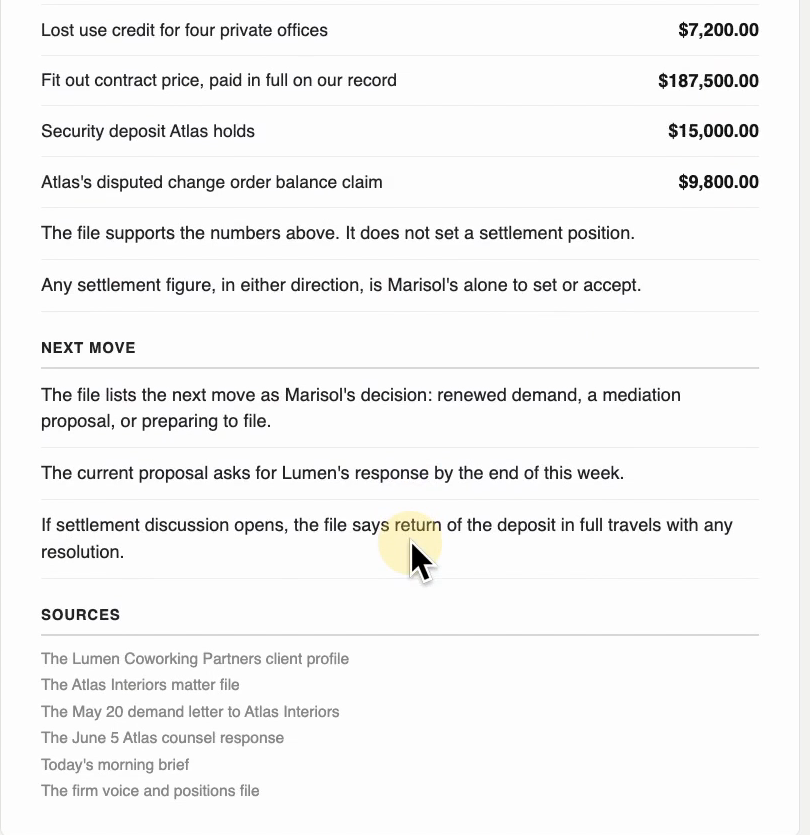
This is the working difference from pasting the morning’s mail into a chat window. A chat hands you advice to retype into email; here the replies already sit as drafts inside their own client threads, each traceable to the positions file, and the only thing left for a lawyer is the judgment call and the Send button. Edward does the drafting hours; your attorneys spend their minutes deciding.
Step 6: Schedule the morning brief
The last step sets the schedule, so the brief arrives without anyone asking for it.
-
Ask for the schedule in one sentence
One typed sentence in the chat sets the weekday schedule, and the settings file diff shows what changed.
Result: The schedule reads weekdays at 8:30 AM, delivery before 9:00 AM.
-
Read the confirmation, honest part included
The confirmation states the schedule and its condition in the same breath: the machine must be on with the app running, and if it was asleep, open the app and ask for the brief.
Result: From now on the brief is almost always waiting before you sit down, on mornings the machine is awake.
-
Leave the computer on for the morning run
The schedule fires on the computer Edward is installed on. A machine that sleeps through 8:30 simply skips that morning, so the practical setup is a machine that stays on, or a first-thing habit of opening the app and asking.
Result: The 9 AM promise holds as far as the machine's uptime does.
Schedule the 9 AM morning brief to run every weekday morning at 8:30 AM, so that it's always ready by 9 AM in the firm's inbox.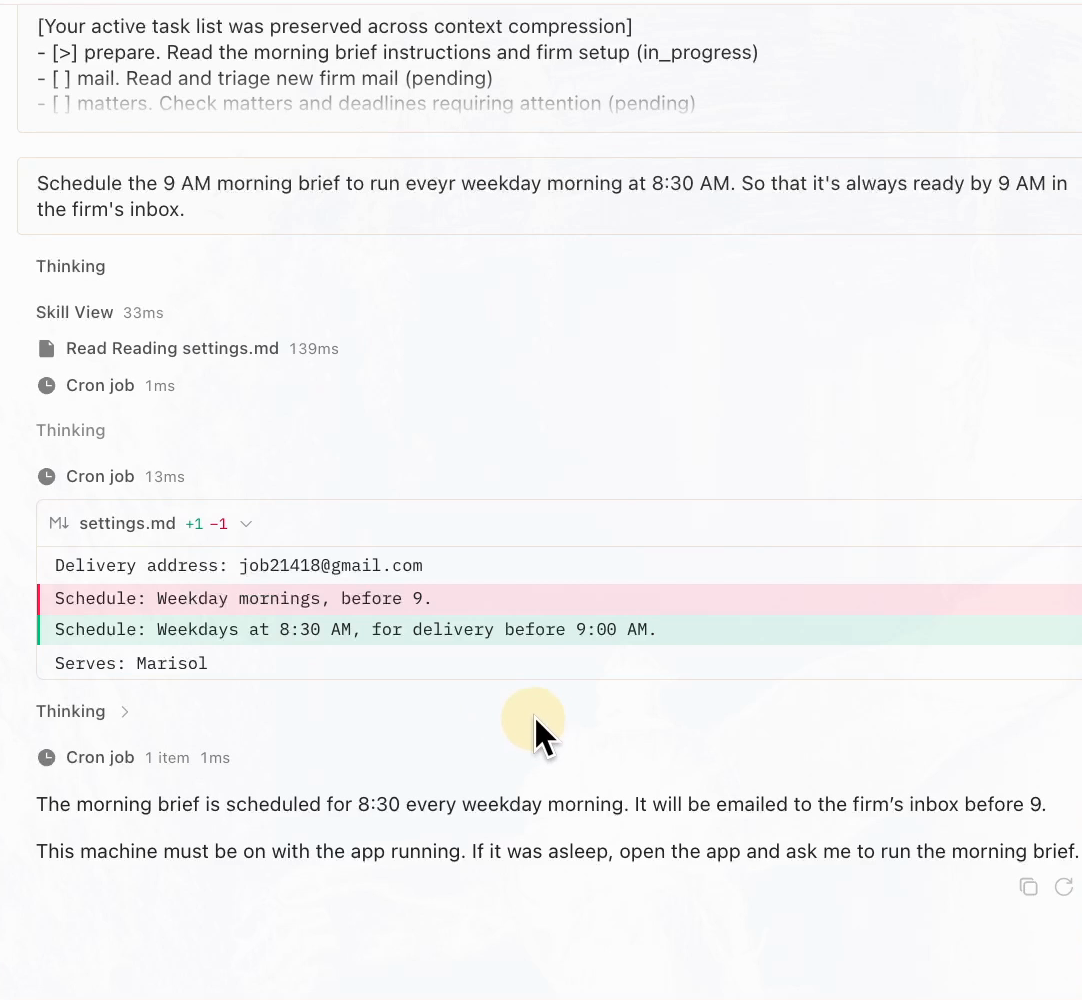
The honest condition travels with the schedule: the run fires on the machine Edward is installed on, while it is on and awake. He says so himself in the confirmation, and the limits below say it again.
Honest limits
- Office hours: Edward runs on the computer he is installed on, only while it is on and awake. The client email that arrives at 9 pm on Friday waits until someone opens him Monday morning.
- Borrowed identity: he answers from the firm’s own mailbox and has no address of his own, so his mail carries the firm’s name rather than a colleague’s.
- Nobody watches or maintains the free Edward: a failed 8:30 run alerts no one, and after the download nobody keeps him current while your positions and the AI behind him change.
The managed Edward does not live with those limits: he runs on his own cloud computer with his own inbox, watched 24 hours a day and kept current as the firm changes. Building that is what I do, and the recording’s offer is concrete: on a call you watch an employee like this run on your firm’s own work, and yours is live within 48 hours of the kickoff. The card in the panel below is that path; the free folder beside it is the honest place to start.
Start small either way. One lawyer, one plan, and one practice matter are enough to see whether your firm wants its mornings handled this way.