On October 28, 2026, Anthropic added ready-made tools to Claude for Legal, and its legal gallery listed 32 of them when we looked. Its launch post calls them artifacts: “interactive tools, such as trackers and dashboards, that teams can use and share in Claude.” Each one is a web page that runs the steps for one legal job on the same Claude you already use, and shows you the result on that page.
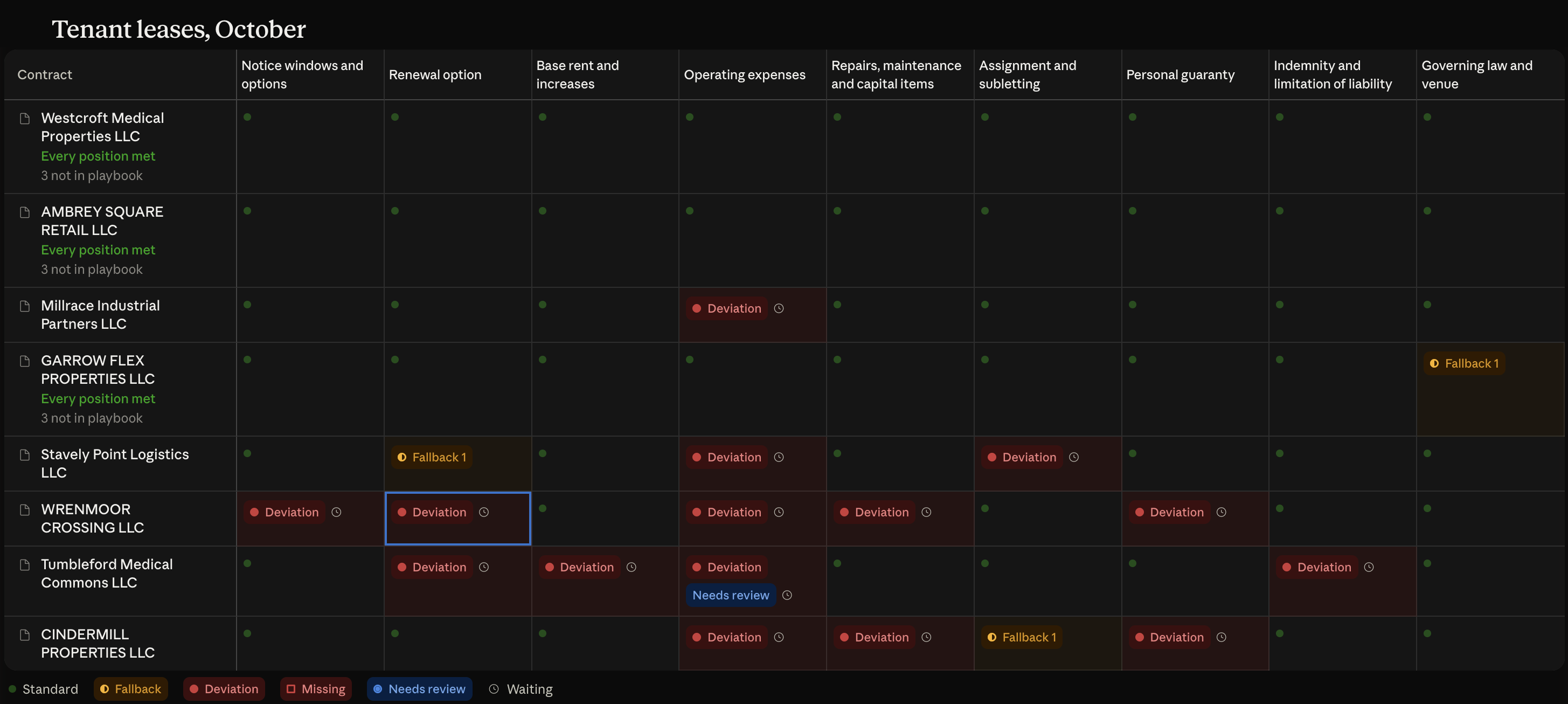
The board at the top of this page is one of them at work: the Playbook deviation board, on eight leases we made up. Below are where the tools live, which ones are built for a law firm, what to check before a real file goes in, and what three of them did on our made-up files. We planted the errors ourselves and wrote the answers down before any tool ran, so every result is scored against a key: fake firm, fake clients, real workflows.
Every tool works the same way. You open it and load your own files, Claude does the first pass, and a lawyer decides.
Step 1: Open the legal gallery and pick your tools
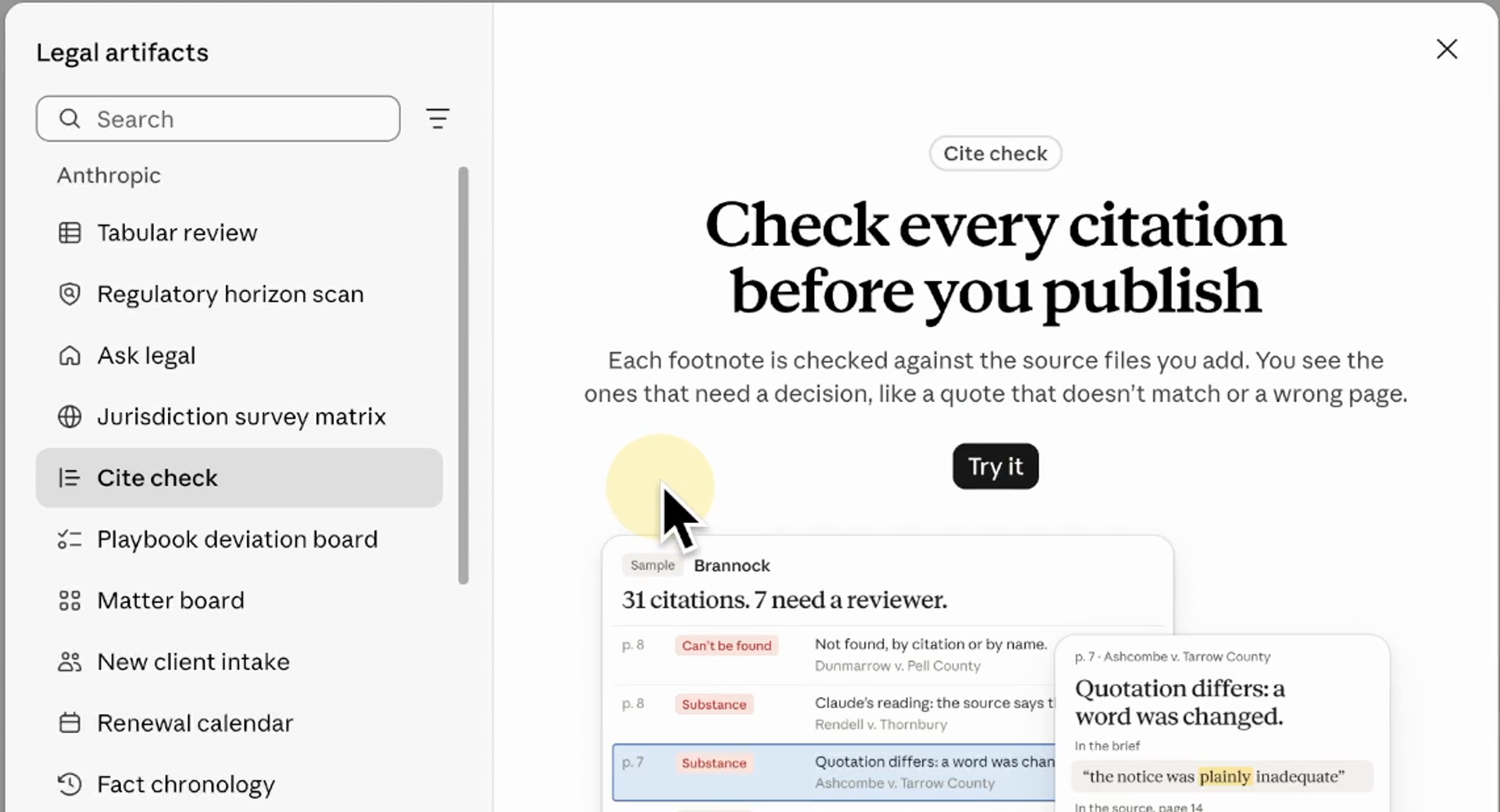
The tools live in a gallery inside Claude, and the way in is a link in Anthropic’s launch post. Every tool there has two buttons: Try it, for Anthropic’s sample on made-up data, and Make it yours, for your own copy to use on your firm’s documents.
-
Open the gallery from Anthropic's launch post
The launch post, "Introducing artifacts for legal work", links to the gallery under Getting started: browse the gallery. The link opens a dialog titled Legal artifacts, over Claude's Artifacts page, in a new tab. Keep it: when we looked, Claude's own menus had no Legal entry.
Result: The legal gallery: 32 tools on November 2, 2026, 22 by Anthropic and 10 built with partners.
-
Pick the tools built for your practice
Read each tool's headline and description, and use the gallery's filter next to Search: All, Enterprise and Access to Justice. A tool built with a partner shows the partner's name under its own.
Result: Your short list: for any law firm, the 11 listed below.
-
Press Try it on one tool
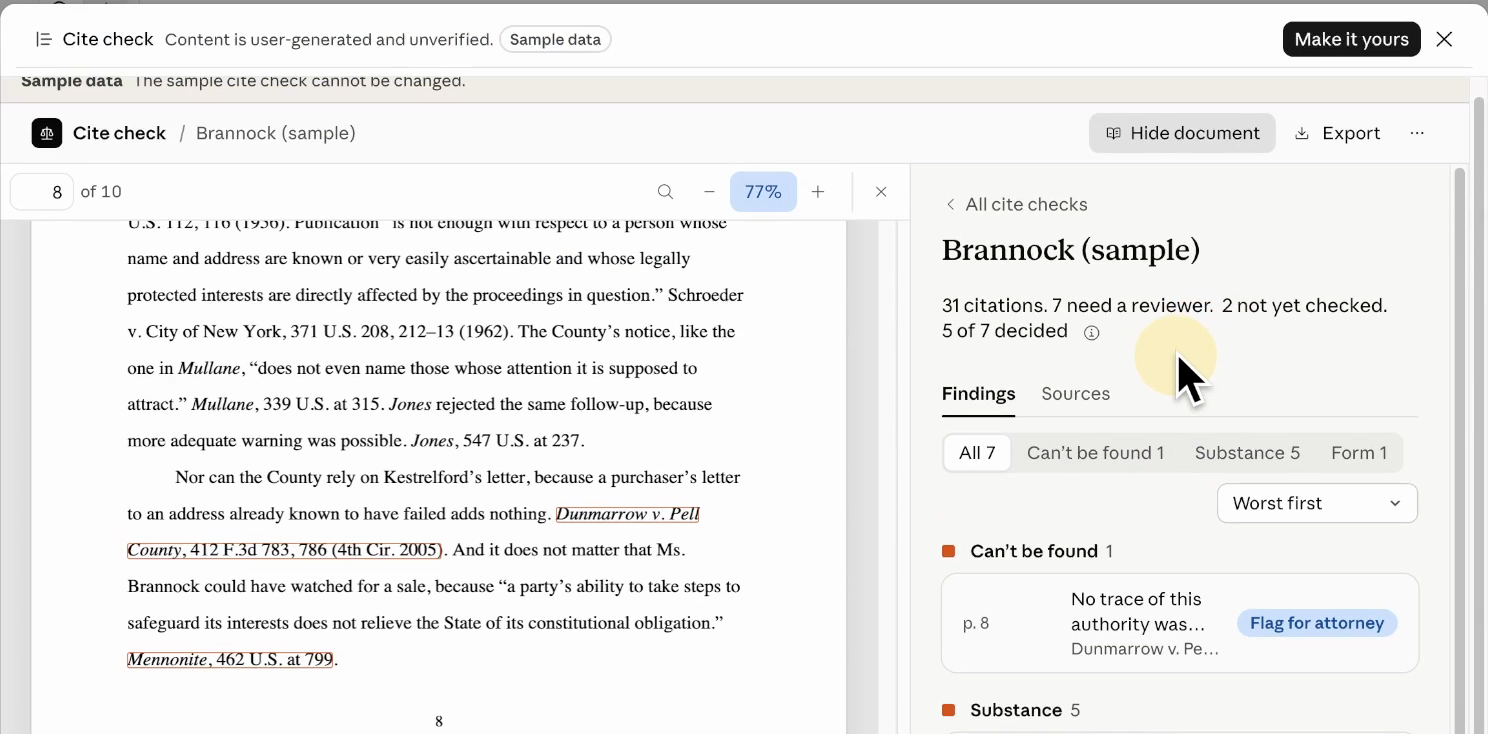
Try it opens Anthropic's sample in a few seconds, marked Sample data, and the sample cannot be changed. On Cite check, it is a made-up brief with 31 citations, 7 of them for an attorney to review.
Result: A finished example of the tool's work, before any file of yours goes in.
-
Open one finding
Under every finding sit three buttons: Fixed, Not an issue and Flag for attorney. In the sample they are grayed out; in your own copy they are yours to press.
Result: You see what the tool hands back, and what stays with a lawyer.
Sorted by who each one is built for, in Anthropic’s own words (the gallery’s filter, and each tool’s headline and description), the 32 fall into five groups. Nine do your lawyers’ work, in litigation and contracts, and two run the firm. Five are built for one specialty each, seven for in-house legal teams, and nine sit under Access to Justice, the gallery’s own filter.
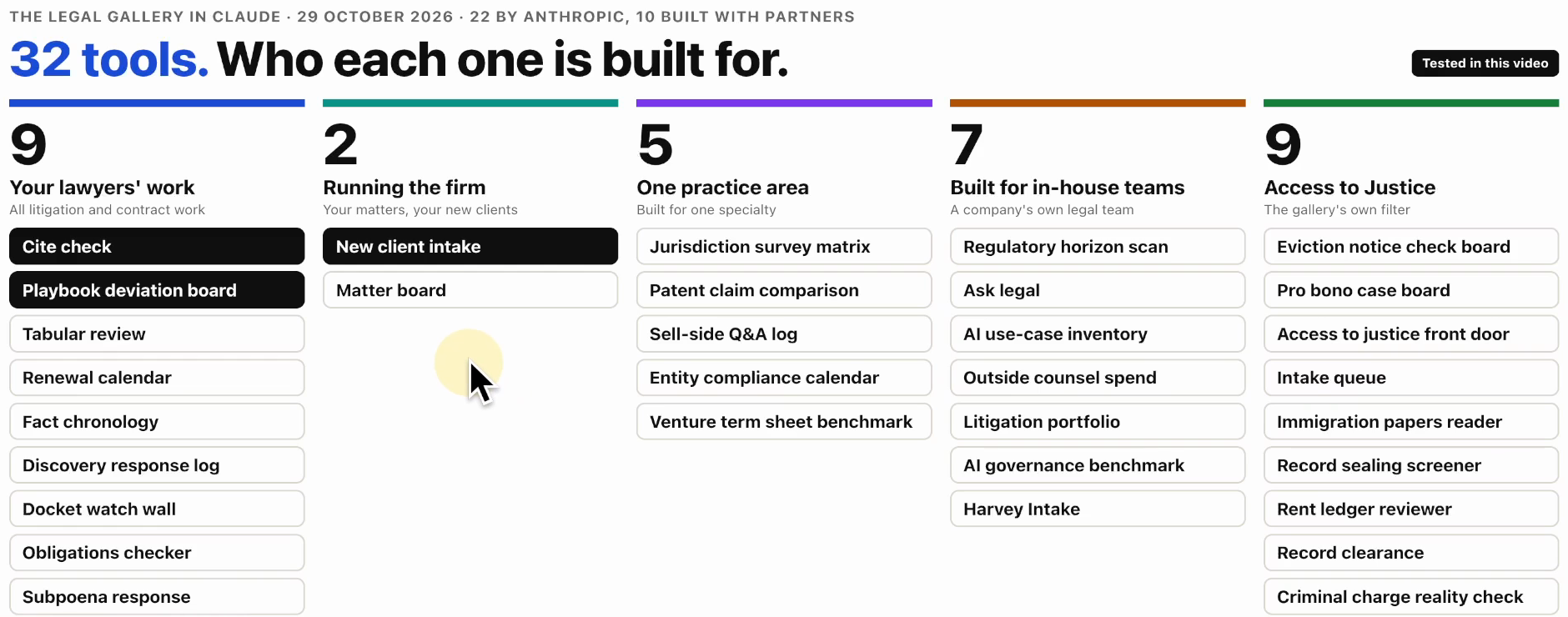
So 21 of the 32 are built for one specialty, a company’s in-house legal team or Access to Justice. For any law firm, the set to start with is these 11, each with Anthropic’s own headline.
Nine for your lawyers’ work:
- Cite check: “Check every citation before you publish”
- Playbook deviation board: “Check every contract against your playbook”
- Tabular review: “Ask every document the same questions”
- Renewal calendar: “Know the last day to give notice on every contract”
- Fact chronology: “Turn your documents into a timeline”
- Discovery response log: “Draft a response to every discovery request”
- Docket watch wall: “Follow all your court cases in one place”
- Obligations checker, built with Foley & Lardner: “Track every obligation and deadline in a contract”
- Subpoena response, built with PwC: “Respond to each subpoena with your own objections”
Two for running the firm:
- Matter board: “See every open matter, and what needs you first”
- New client intake: “Bring every new inquiry into one queue”
Three of them are tested below: Cite check, New client intake and the Playbook deviation board.
Step 2: Check your plan and who can open your copy
Make it yours turns the sample into your own copy: a chat with the tool beside it, starting empty, with an upload box where your files go in. On that box sits Anthropic’s own line: “Everyone who can open this page can read what you add.” So before any real file goes in, check who can open your copy, and what your plan does with your chats.
-
Press Make it yours
It makes your own copy in a few seconds, named after the tool with (Copy) at the end, and opens it as a chat with the tool beside it. The copy starts empty: "You're now viewing your copy. Data from the original wasn't copied."
Result: Your own copy, with an upload box for your files.
-
Check who can open your copy
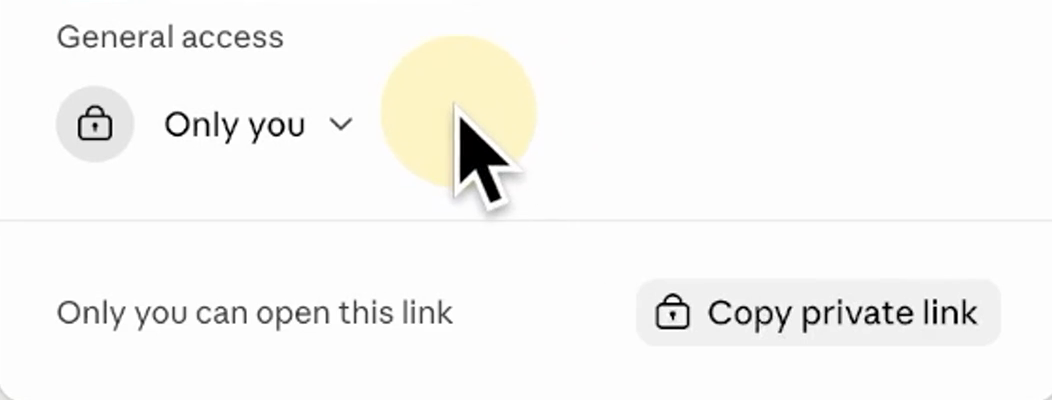
Press Share at the top of the copy. General access reads Only you, with "Only you can open this link", until you change it. Anyone you later share it with can read what you add to the page.
In the app: Share → General access
Result: Only you can open your copy.
-
On Free, Pro and Max, turn the training setting off
One setting decides whether your chats train Anthropic's models: "Help improve our AI models". Turn it off before any file goes in.
In the app: Settings → Privacy → "Help improve our AI models"
Result: With it off, Anthropic says it "will not use any new chats and coding sessions you have with Claude for future model training."

Each quotation below is Anthropic’s, from its pages read on October 29, 2026, or from the tool’s own screen. Use a Team or Enterprise plan for client files, not a personal Free, Pro or Max account.
Step 3: Check a brief’s citations with Cite check
Our test brief is a four-page memo in support of a motion to dismiss, made up and AI-generated like every file here. We planted four citation errors in it: two cases that don’t exist, one quotation flipped to say the opposite of what the court said, and one wrong page number. The other seven authorities are real. At your firm, that is your own brief going in, and every tool here takes your files the same way.
-
Write down what you planted
Know the answers before the tool runs. Ours: two cases we invented, Cardwell Packaging and Ostrander Machine; the Twombly quotation with "does not" taken out, which reverses it; and the Wolfe quotation pinned to page 708, when its words are on page 710.
Result: An answer key, written before any run.
-
Make it yours, then choose your brief
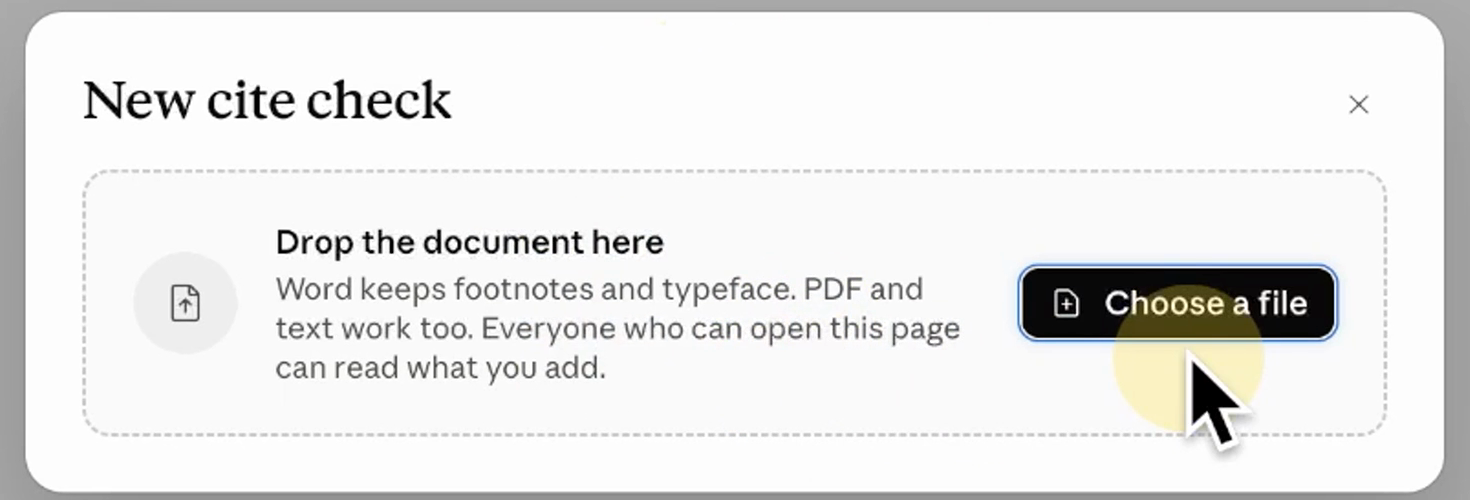
In your copy, Choose a file takes the brief: Word keeps footnotes and typeface, and a PDF or text works too. Before it calls Claude, the tool counts the citations itself.
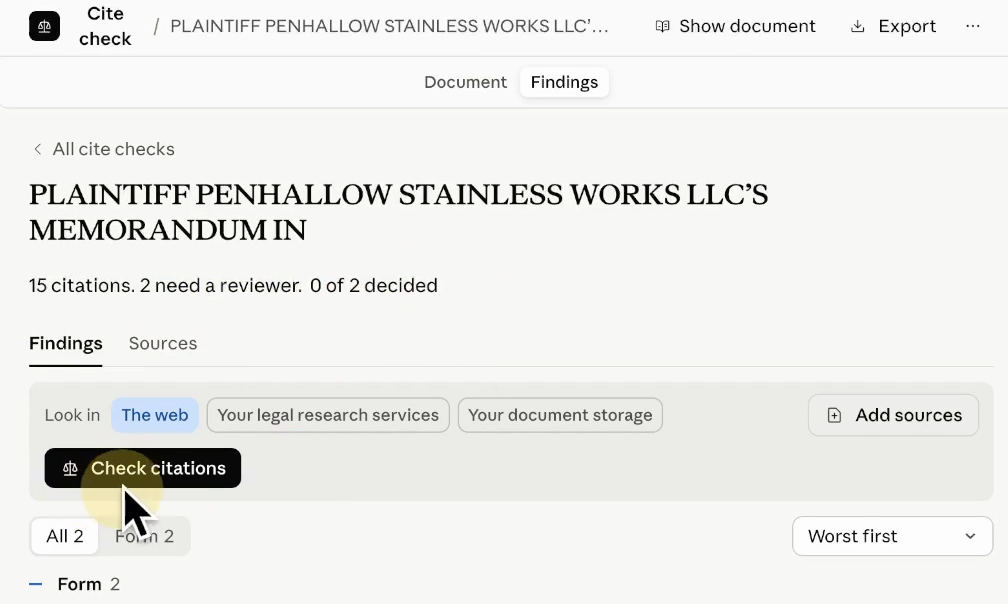
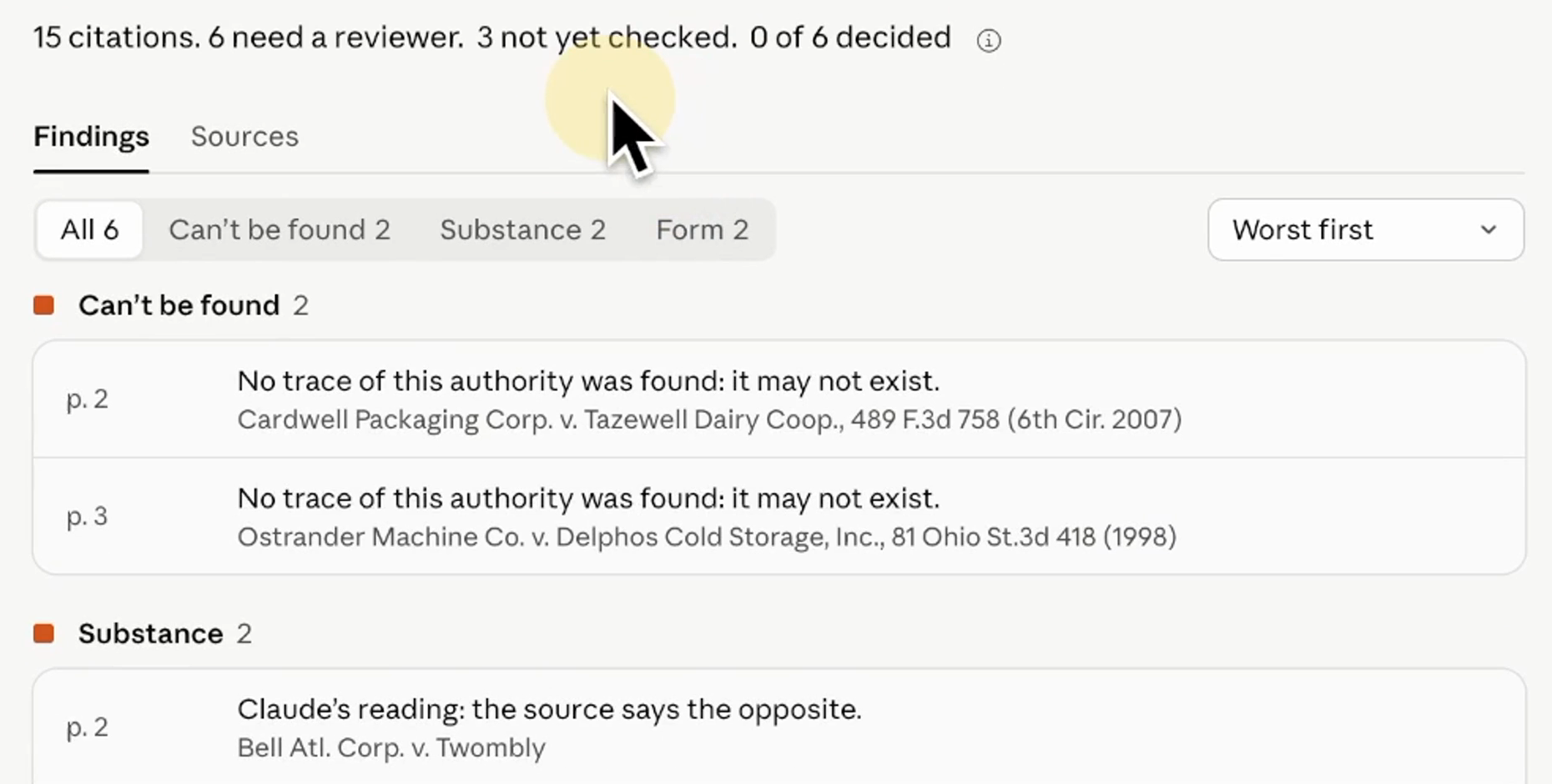
Result: Its first read of ours: 15 citations, 2 need a reviewer.
-
Press Check citations, then Enter in the chat
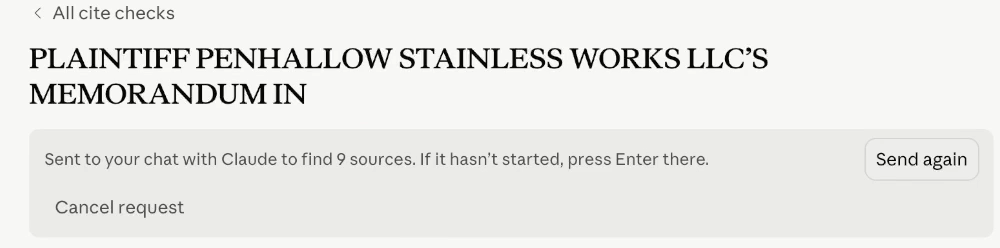
The tool writes its own request into the chat beside it: "Sent to your chat with Claude to find 9 sources. If it hasn't started, press Enter there." Click into the chat and press Enter. Ours ran on Opus 5.5 at Extra effort, in Auto mode.
Result: The check runs in the chat; ours finished 22 minutes after Enter.
-
Read the count at the top
The findings sit under Can't be found, Substance and Form, and further down under Worth a look. Each one opens beside the passage of the brief it is about.
Result: Ours: 15 citations, 6 need a reviewer, 3 not yet checked.
-
Open Can't be found
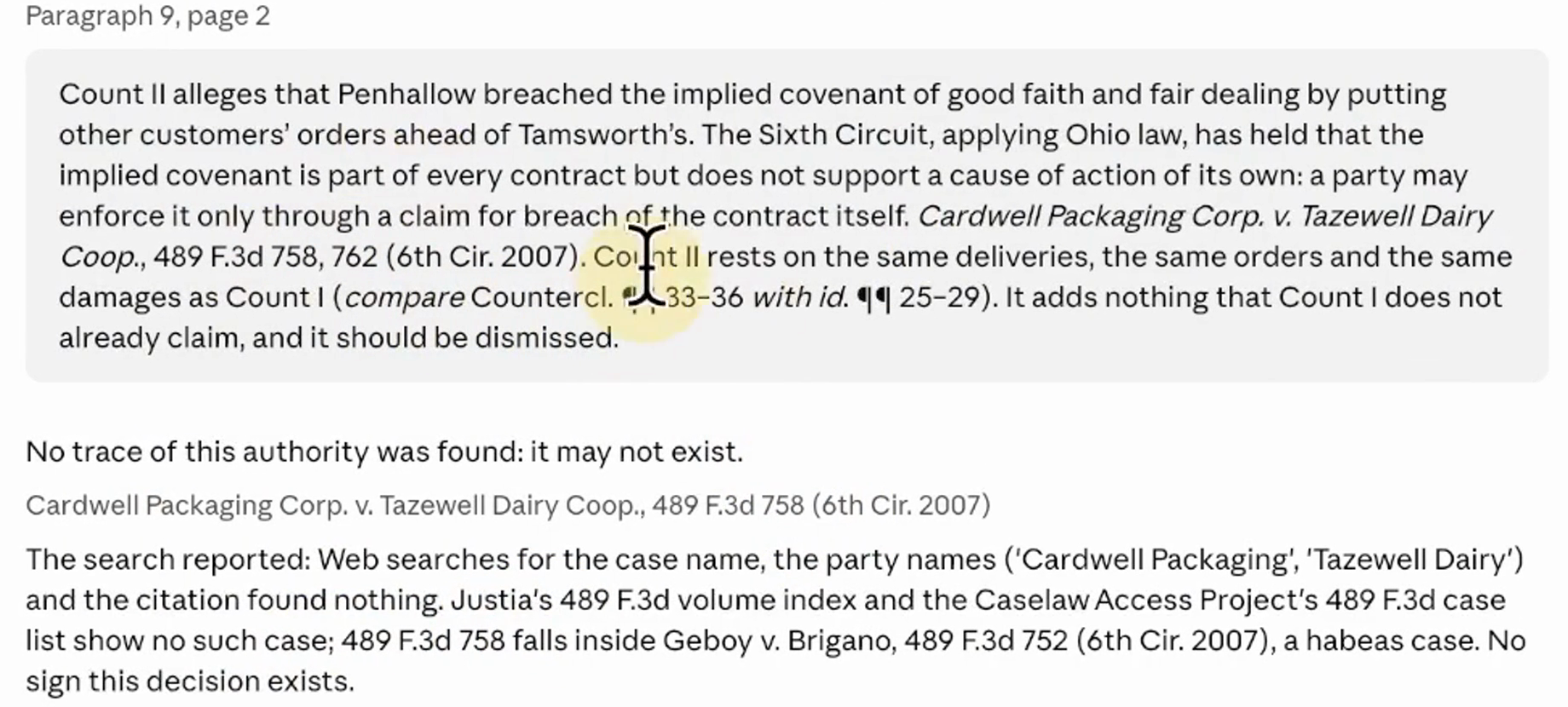
Both invented cases are here. On Cardwell, the tool shows the paragraph of the brief with the citation, and under it: "No trace of this authority was found: it may not exist.", with the searches it ran listed underneath.
Result: The two invented cases: caught.
-
Read Substance, Form and Worth a look
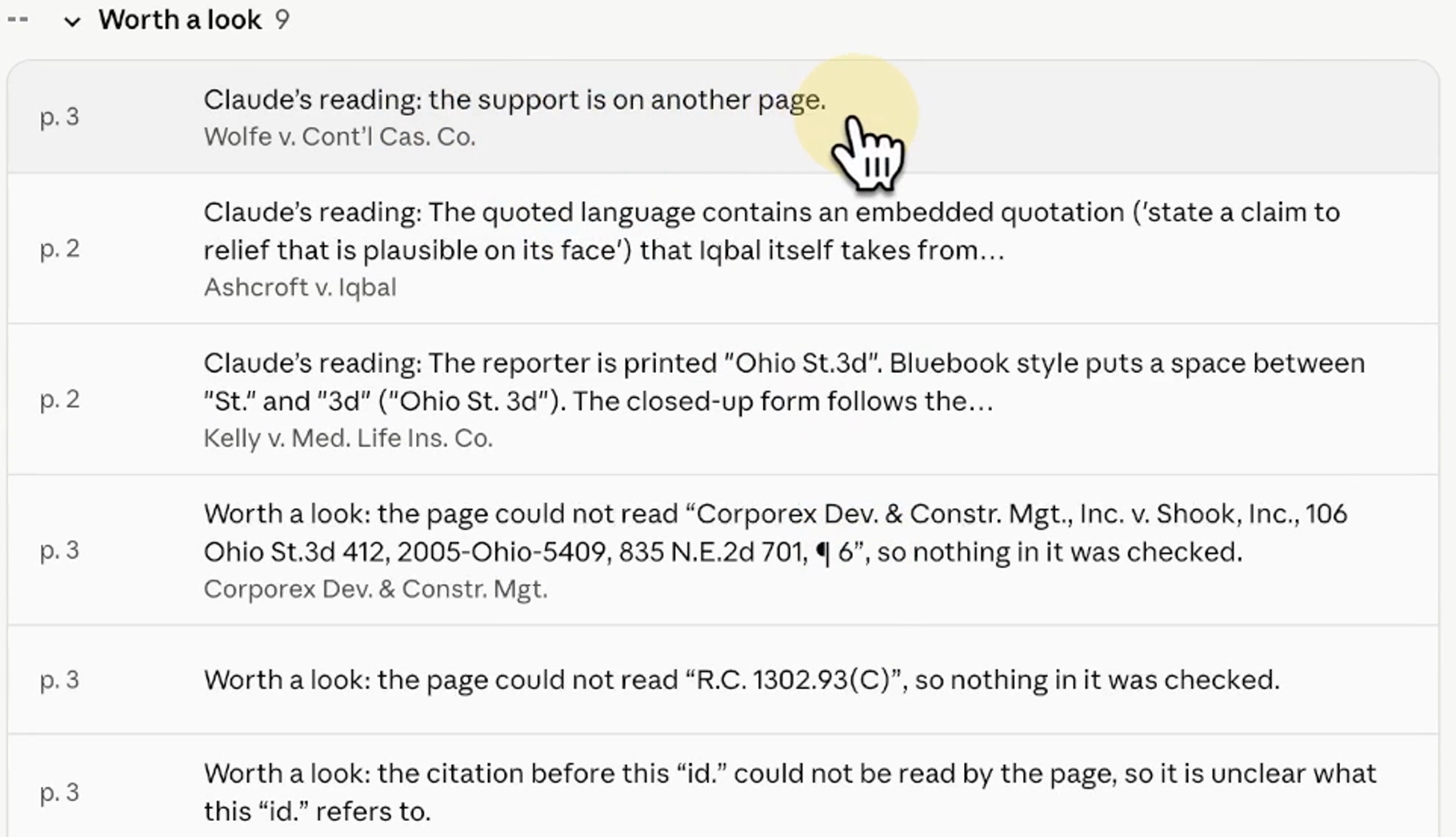
The flipped quotation is under Substance: "the source says the opposite". It also raised three other notes, one more under Substance and two under Form, and none of them says a real authority cannot be found, is misquoted or has the wrong page. The wrong page number sits further down, under Worth a look, not among the 6 that need a reviewer: "the support is on another page".
Result: All four planted errors flagged.
-
Read what it could not check
The 3 not yet checked are real citations its page could not read, and it says so instead of guessing. Every finding waits for a person to press Fixed, Not an issue or Flag for attorney.
Result: A first pass, with every call left to a lawyer.
Four errors planted, four caught, and it said which citations it could not check instead of guessing: that is what a good first pass looks like. Read Worth a look too, because the planted wrong page number was there, not among the 6 that need a reviewer. Before you rely on it, know where it stops. It checks that each authority exists and supports the proposition it is cited for, against the sources you add, the web and free case law. Whether a case is still good law stays your citator’s job, KeyCite or Shepard’s, in your own Westlaw or Lexis.
Step 4: Check a new inquiry for conflicts with New client intake
The firm loads its conflict list, and from then on every new inquiry is checked against it. Our test inquiry is a phone note from reception that names a current client: a possible conflict we planted on purpose.
-
Make it yours and name the queue
Open New client intake from the gallery and press Make it yours. Type a name for the queue and press Add enquiry. The tool calls this page a queue: every new inquiry arrives on it as a card, in a column for where it stands.
Result: An empty queue, with columns from New and Conflicts to Signed and Declined.
-
Load the conflict list
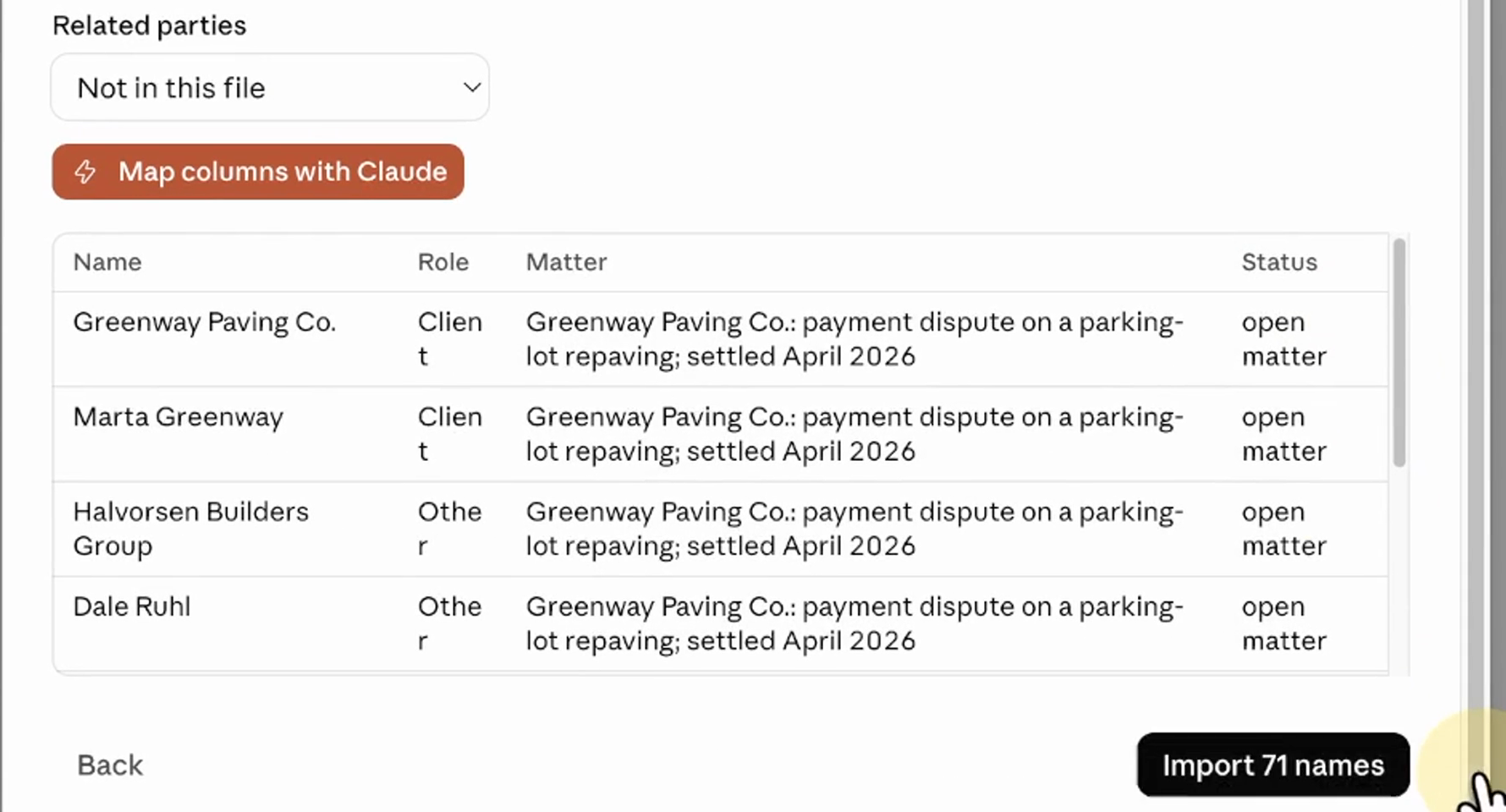
Open the three dots at the top, then Conflict index, then Import a list, and drop the list in: the names on the firm's matters, its clients and the other parties alike. Ours is a spreadsheet of 71 names in 37 matters. Every check after this one searches that list, so load it again whenever it changes.
In the app: ⋯ → Conflict index → Import a list
Result: Import 71 names, and the list is in.
-
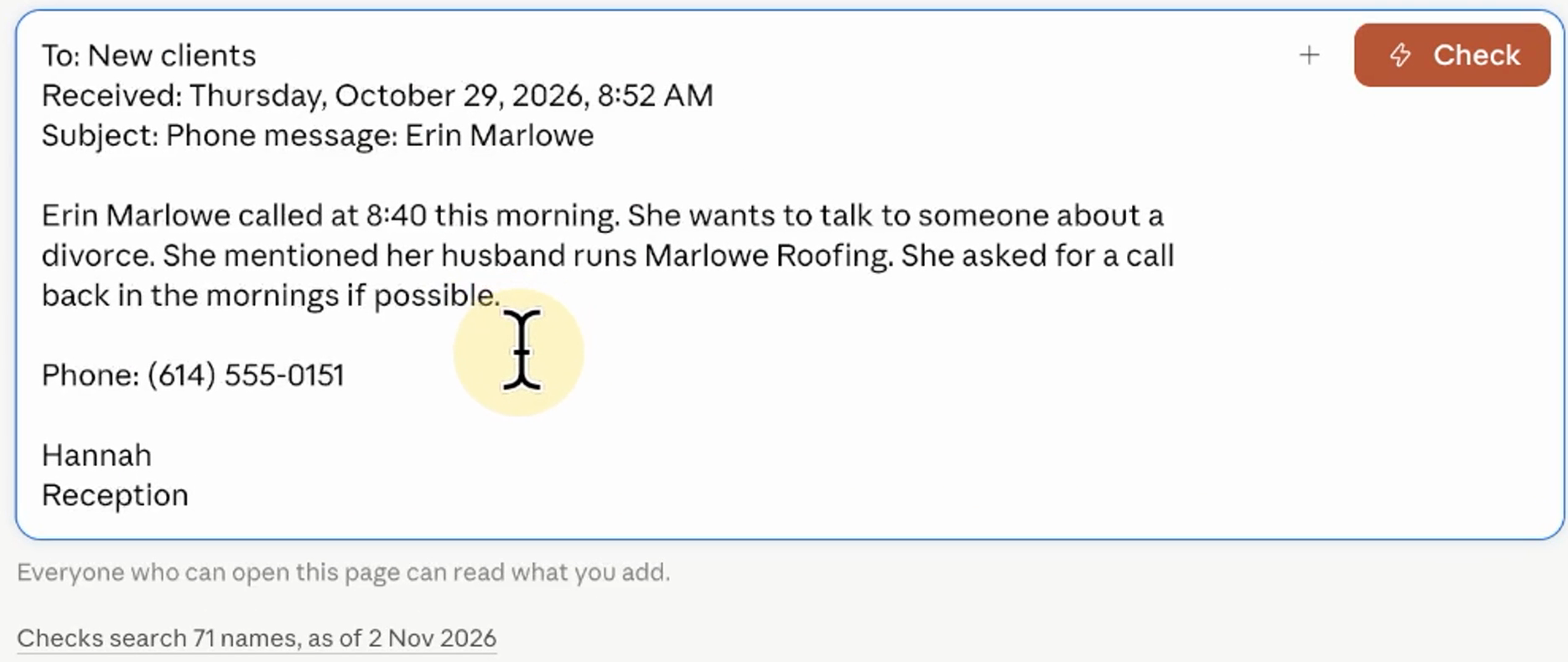
Paste in the inquiry and press Check
Ours is a phone note from reception, fictional like all our files: a potential client called about a divorce, and the note names her husband's company. That company is a current client of the firm, and it is in the list we loaded.
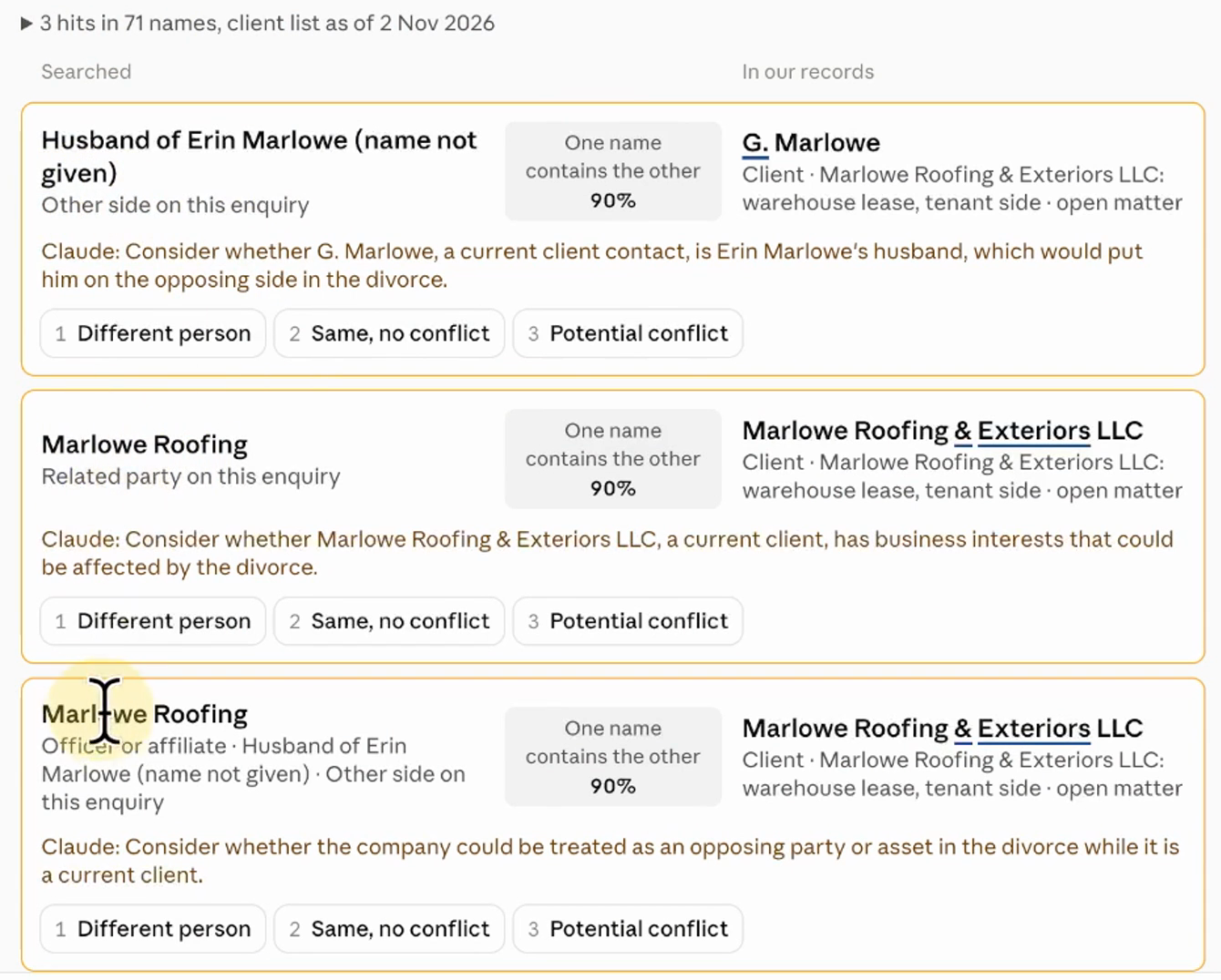
Result: Within seconds: 3 hits to review.
-
Read the hits and Claude's reasons
All three point at the same current client, Marlowe Roofing, through the family name Marlowe and the company's name. Beside each hit, Claude says why it may matter, for example: "Consider whether the company could be treated as an opposing party or asset in the divorce while it is a current client." A person marks each one: Different person, Same, no conflict, or Potential conflict.
Result: The possible conflict we planted: found, with the reason beside it.
-
See where the inquiry waits
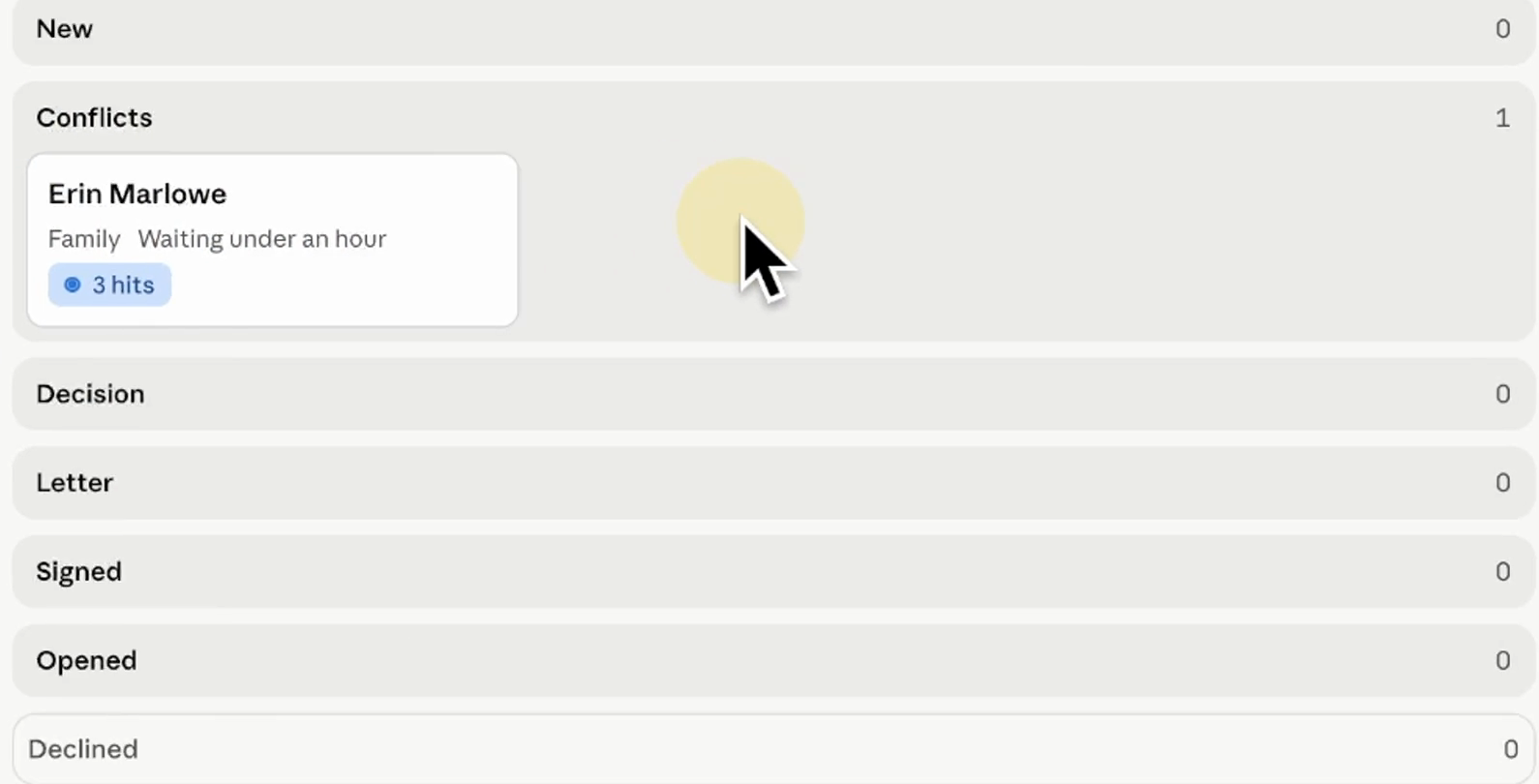
The card sits in the Conflicts column, waiting for a lawyer to decide, and that is where it stays: nobody is reminded and nothing is sent. The list it checked is the one loaded that day, so a client the firm signs tomorrow is not in it until someone adds them.
Result: The check is done for you; the follow-up is not.
Test firm LLP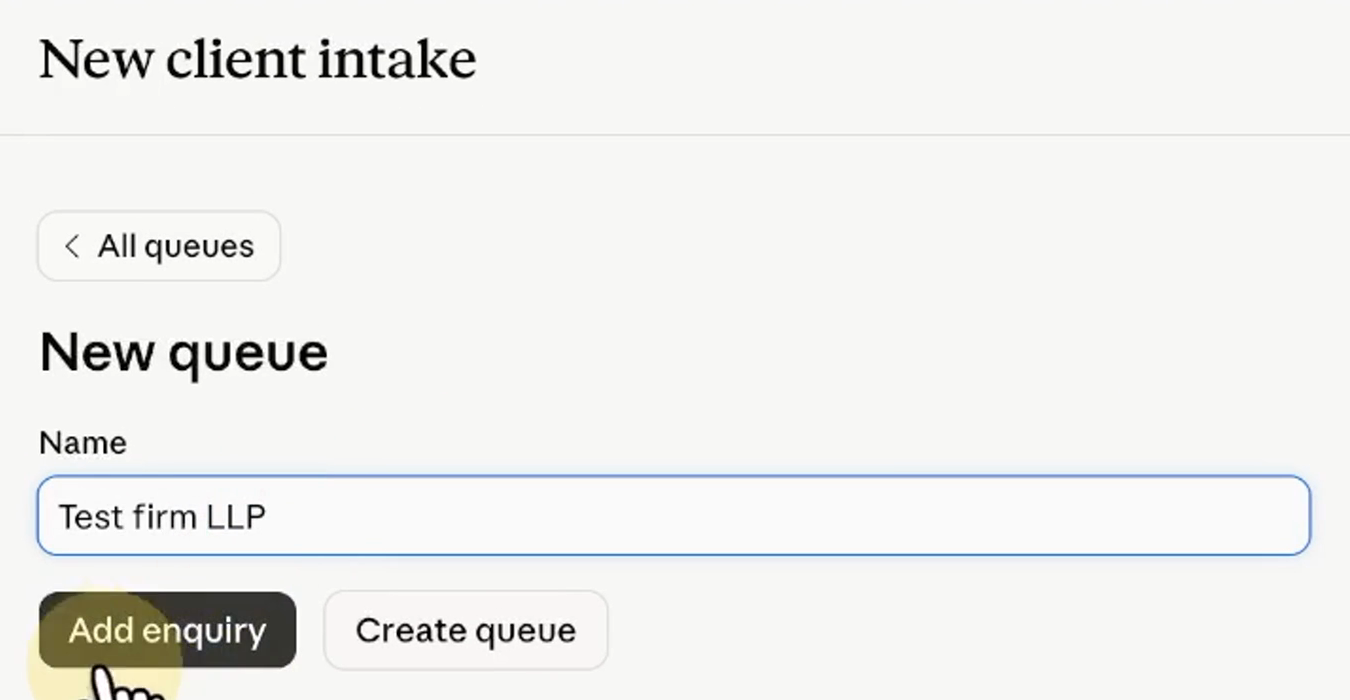
The check is done for you, but the follow-up is not: someone at your firm still has to come back to the card and call her.
Step 5: Check eight leases against your playbook
A playbook is where a firm writes down its standard position on each clause, with the fallbacks it will accept; the board calls a clause a deviation when it is outside every fallback. Our eight leases are tenant-side leases for eight clients of the made-up firm. Before the tool saw any of them, we planted 16 departures from the firm’s positions, 13 outside every fallback and 3 that a fallback allows, so we knew which flags should come up.
-
Make it yours and start a new review
Open the Playbook deviation board from the gallery, press Make it yours, then New review, and type a name for the review.
Result: A new review, waiting for the playbook and the contracts.
-
Choose the playbook and the contracts in one pick
Choose files takes them together: ours were the firm's lease review playbook and eight leases in Word, nine files. The tool picks the playbook out of the nine by itself.
Result: Eight contracts listed, and the playbook taken as the playbook.
-
Press Check contracts, then Continue
The first run asks once about usage: "This usage counts toward your usage limits." Press Continue.
Result: The review starts.
-
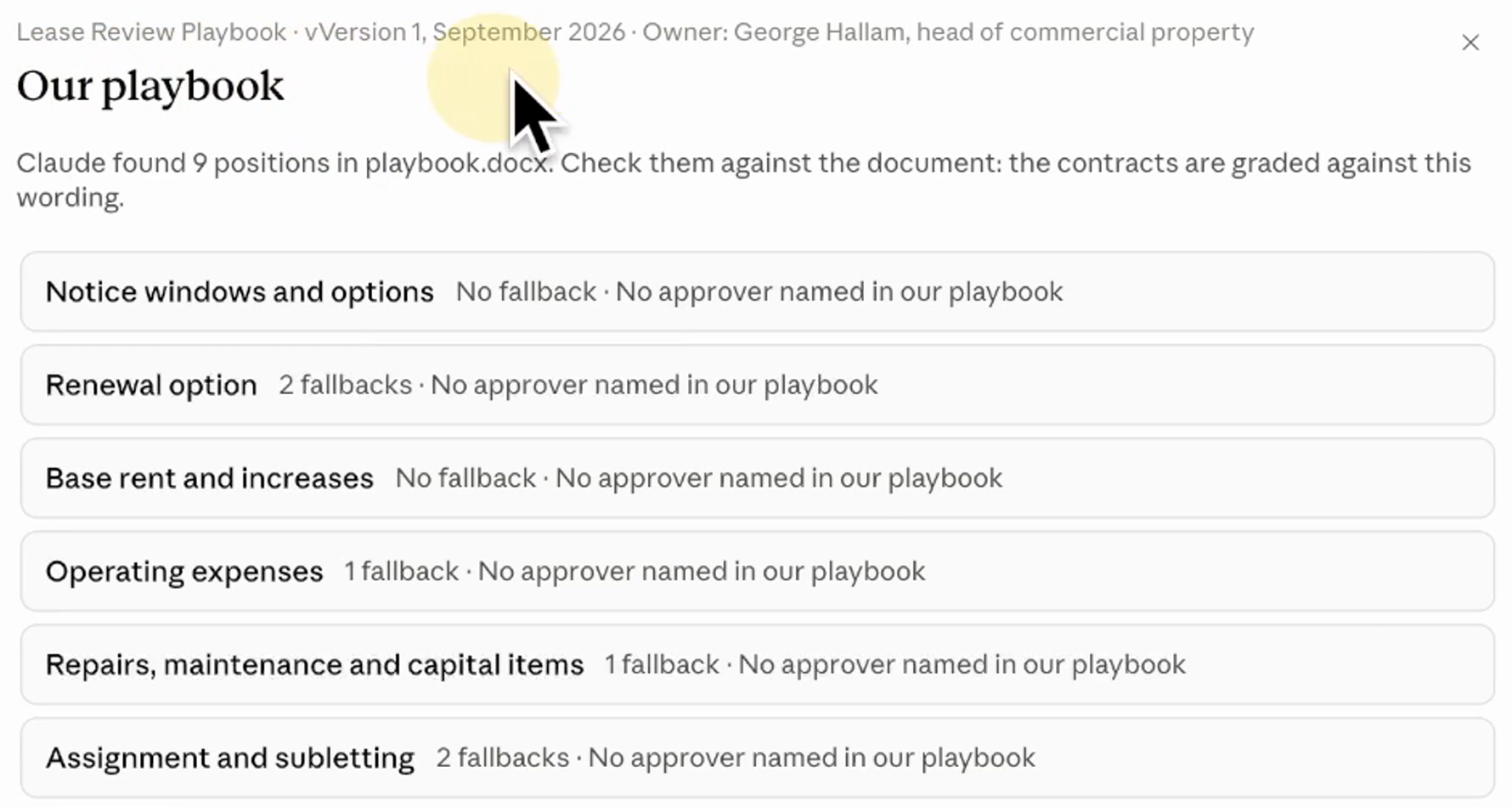
Check the playbook it reads back
Before it grades anything, it reads your playbook back, so you can check it read it right. Ours is the made-up firm's lease review playbook: nine positions, the firm's standard on nine clauses, marked Version 1, September 2026. The standard stays yours; the tool only grades against it.
Result: Use this playbook, and the grading starts.
-
Read the board
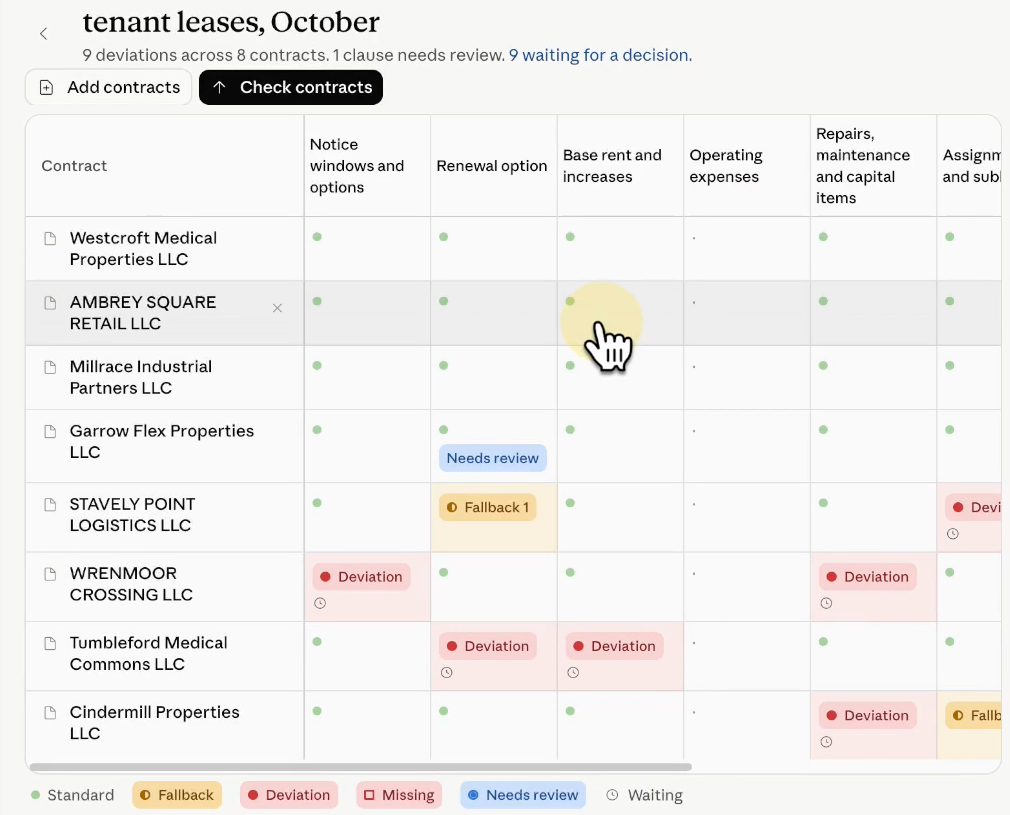
One row per lease, one column per position, every flag in its cell: Fallback 1 where a fallback covers the clause, Deviation where it is outside every fallback, Needs review where the board wants a person to look. Ours read 14 deviations across 8 contracts and 2 clauses that need review. The header counts every cell marked Deviation, so a planted clause the board marks again under a second position counts twice; the score below shows it in our October 29 run. One of the two Needs review flags shares its cell with a Deviation, Tumbleford's operating expenses, and the other sits on a clause we left clean, Garrow Flex's renewal option. The two leases where we planted nothing read "Every position met".
Result: Every flag on one board, each beside its clause; our October 29 run's score against our key follows below.
tenant leases, October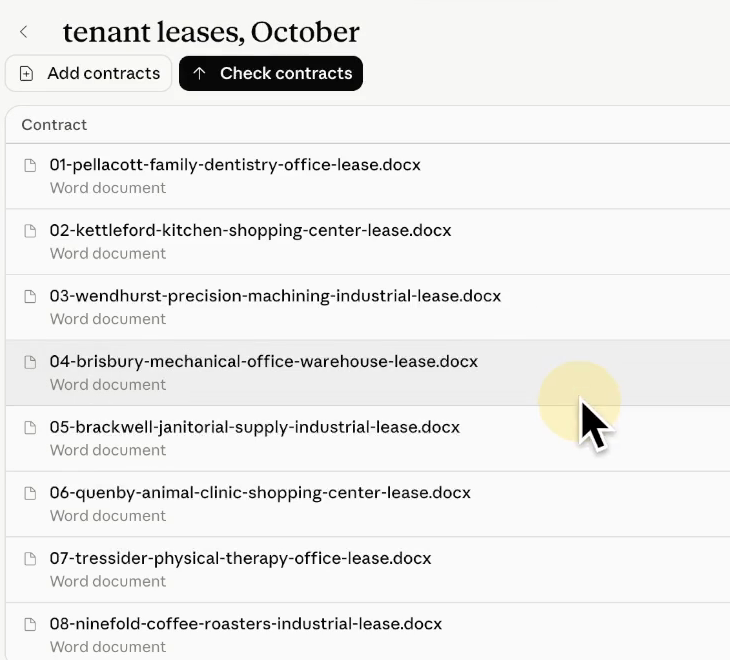
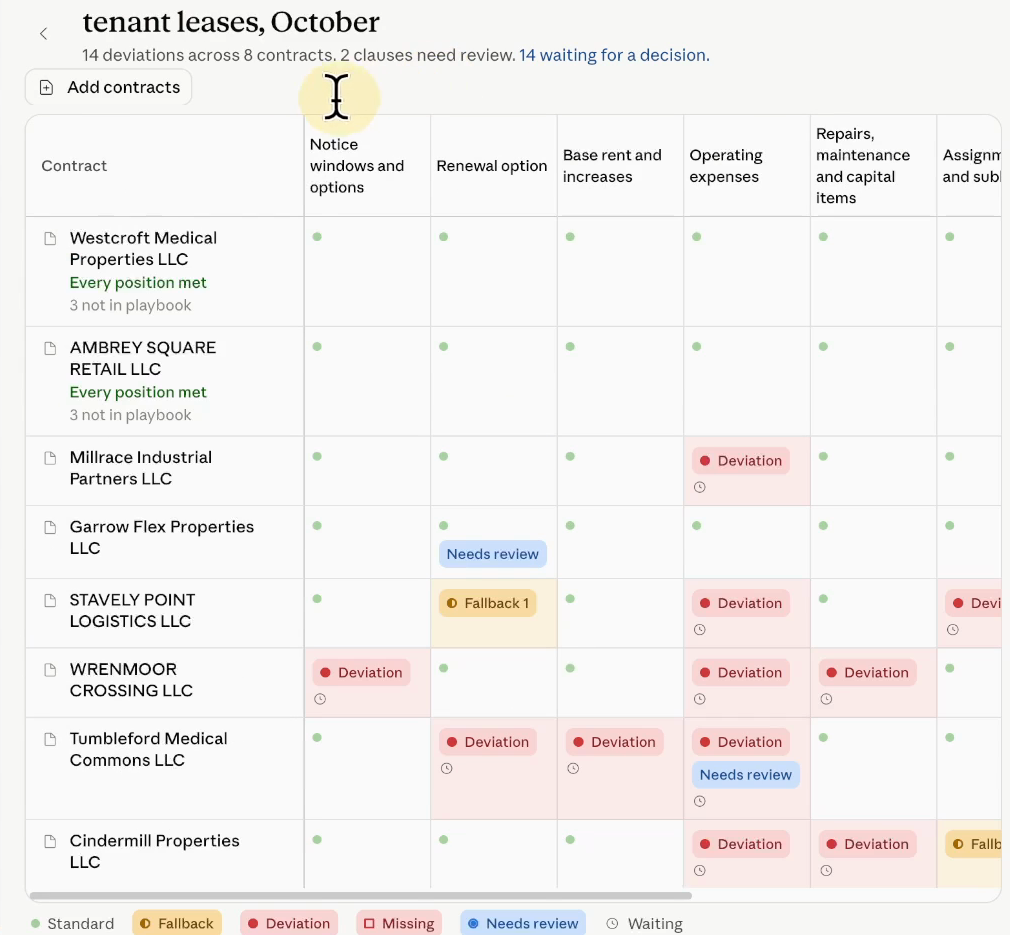
We did not score the filmed board above cell by cell. We scored our October 29 run of the same test that way, against our key, and its board is the one at the top of this page: it flagged all 16 planted departures at the right level, the 13 as Deviation and the 3 as Fallback 1, and raised no false alarm on the 56 clauses we left clean. Its header read 15 deviations for our 13, because two planted clauses were marked again under a second position.
Step 6: Change one playbook position and re-run
A firm’s playbook is never finished. Positions change, and when they do, someone has to change them in the tool too, or the board keeps grading every new lease against an old standard. Who keeps these playbooks updated is a question that kept coming up under Anthropic’s posts announcing the release, so this step changes one position and re-runs the board.
-
Pick the position that changes
Ours is the operating-expense cap, from five percent to six. Three of our leases sit on that cap: Millrace at exactly six percent, which should now pass; Stavely Point at six percent, cumulative and compounding, which should not; and Wrenmoor at seven, which should not either.
Result: You know which flag should clear, and which two should stay.
-
Change it in the playbook
Open the three dots at the top, then Playbook, then Operating expenses. Two fields say five percent, Our standard and Not acceptable: change both to six.
In the app: ⋯ → Playbook → Operating expenses
Result: Both fields say six percent.
-
Press Save playbook
The board forgets the grades for the one position you changed and keeps everything else: the Operating expenses column goes blank on all eight leases, and every other flag stays. Ours went from 14 deviations to 9; the five it threw out were the Operating expenses flags, graded on the old position.
Result: Only the changed column is left to re-check, not all eight leases from scratch.
-
Press Check contracts again
It checks the changed position again on all eight leases. Ours came back at 13 deviations across 8 contracts, and Garrow Flex's Needs review on its renewal option cleared in the same pass.
Result: Millrace reads "Every position met"; Stavely Point still reads Deviation, and Wrenmoor is still flagged.
-
Open the playbook again
Its header still says Version 1, September 2026, after the change and the re-check. The tool re-grades what you change, but the version line stays the same, and the playbook has no field for what changed or who changed it.
Result: Keeping the playbook updated, and knowing who changed it, stays with someone at your firm.
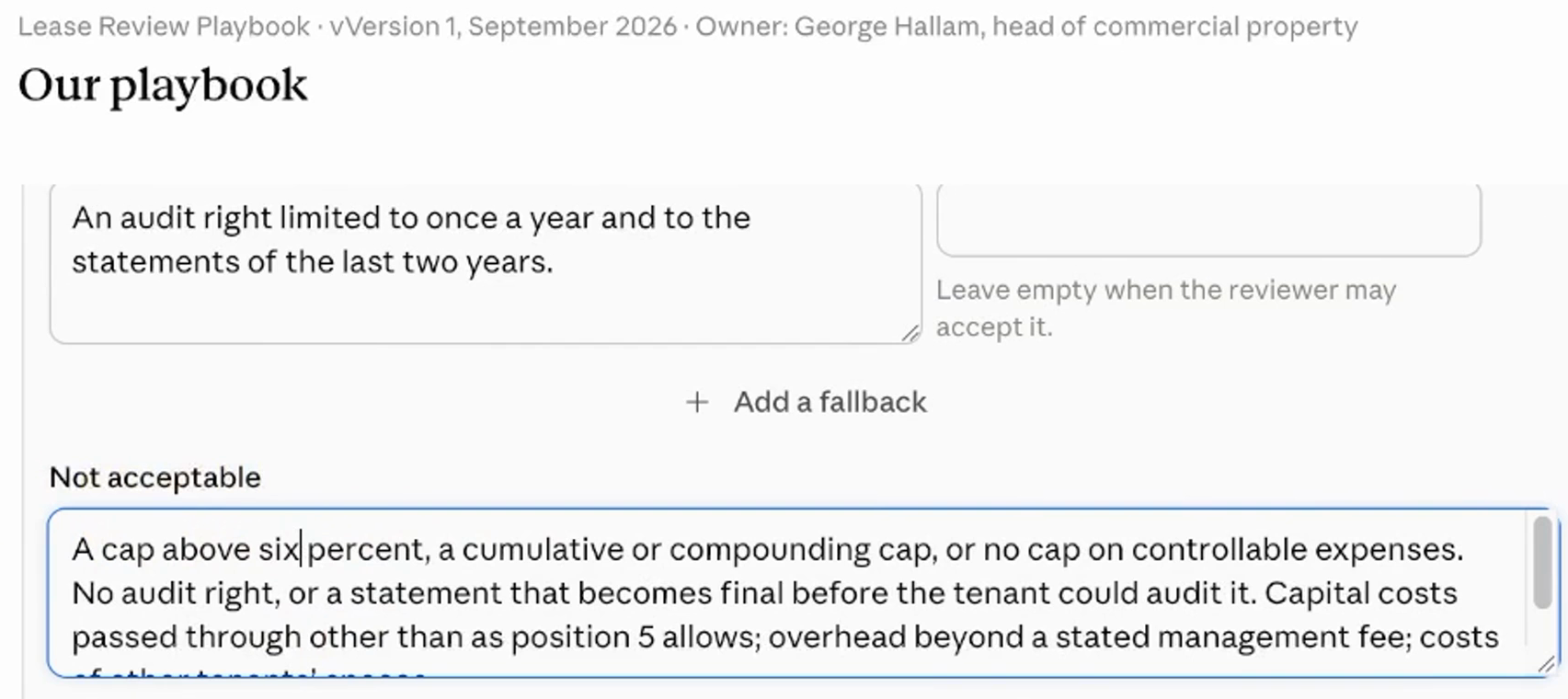
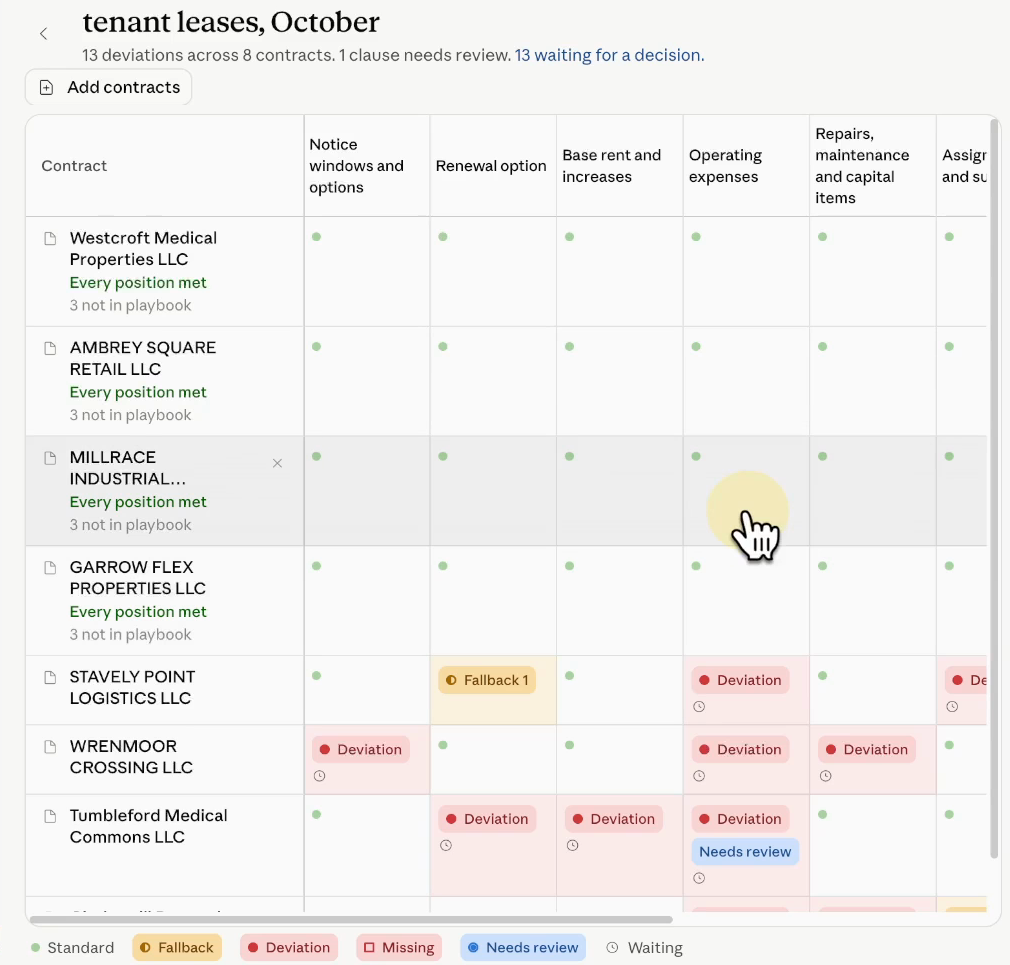
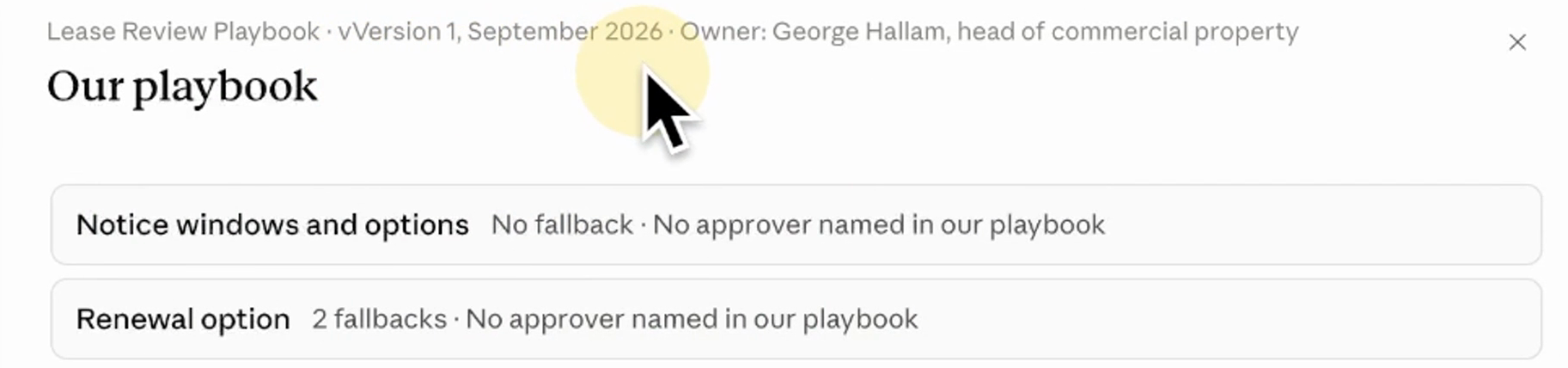
One change: the right flag cleared, and the two that should stay flagged did. The playbook’s version line stays the same, and it has no field for what changed or who changed it, so keeping it updated, and knowing who changed it, stays with someone at your firm.
What each tool caught, and the four gaps
That is three tools, and every error we planted was caught. Each result is still a first pass: the tools read our brief, our inquiry and our leases, and everything they found waits for a lawyer to review and approve.
| Tool | Our test | What it flagged | Worth knowing |
|---|---|---|---|
| Cite check | Our four-page brief: 4 planted errors, 7 real authorities | All 4 planted errors | 3 real citations not yet checked, and it said so |
| New client intake | A phone note naming a current client, checked against 71 names | The 1 planted possible conflict, as 3 hits on one current client | Nobody reminded, nothing sent |
| Playbook deviation board | 8 leases with 16 planted departures: 13 outside every fallback, 3 a fallback allows | All 16, each at the right level, in our October 29 run scored cell by cell | On the filmed board, one Needs review sits on a clause we left clean |
| The re-run | One change: the operating-expense cap, five percent to six | Millrace cleared; Stavely Point and Wrenmoor stayed flagged | The playbook still reads Version 1, September 2026 |
These tools come as shipped. Fitting them to your firm and keeping them current is work someone at your firm does, by hand, each time. There are four gaps, and each one has a fix:
- Someone opens each tool by hand, every time. When a new brief or lease comes in, nothing happens until a person goes to Claude, opens the tool and loads the file. The fix: an agent that picks the work up the moment it comes in, and sends the output to your Outlook as an email, or to Teams.
- What you upload is a snapshot. No tool keeps itself current, and nothing is fitted to your firm: your playbook, your positions and your intake rules are yours to put in and keep updated. Each copy is its own, so ten lawyers who each press Make it yours have ten playbooks to keep current. The fix: a named person at your firm who owns them, and updates and syncs them as the firm changes.
- Nothing follows up. The intake card in Step 4 sat in its Conflicts column, waiting for someone to come back to it, and nobody at the firm heard about it. The fix: an agent that sends that reminder to whoever handles intake, in Teams or Outlook.
- They only know what you upload. Someone gathers the firm’s files each time, and a check is only as current as the list last loaded into the tool, so a client the firm signed yesterday is not in it. The fix: a connector, a link from Claude into Outlook, Teams, Clio or your research service, such as Westlaw, where the work already lives. Someone at your firm sets it up once, and from then on the tools can read from there. We did not connect one in this test.
This is likely just the start. Anthropic’s launch post says more artifacts are coming from two more partners, so expect a lot of this to change in the coming months.
One honest limit of our own test: every result on this page is one run of a tool on files we made up, so it shows what that tool did once, on our files.
If you haven’t used Claude much on real work, this is the easiest way to start so far: you get a finished page built for one job, instead of a blank chat. Your first step is in the panel below, and beside it the intake build.
I’m not a lawyer. Building AI agents for law firms is my work, and every test on this page ran on a firm we made up. Night Docket is independent and is not affiliated with or endorsed by Anthropic.